Adding a location to your site helps patients by informing them of your various practice location’s addresses, hours, and directions.
To add a location:
Log onto the PracticeBeat Dashboard.
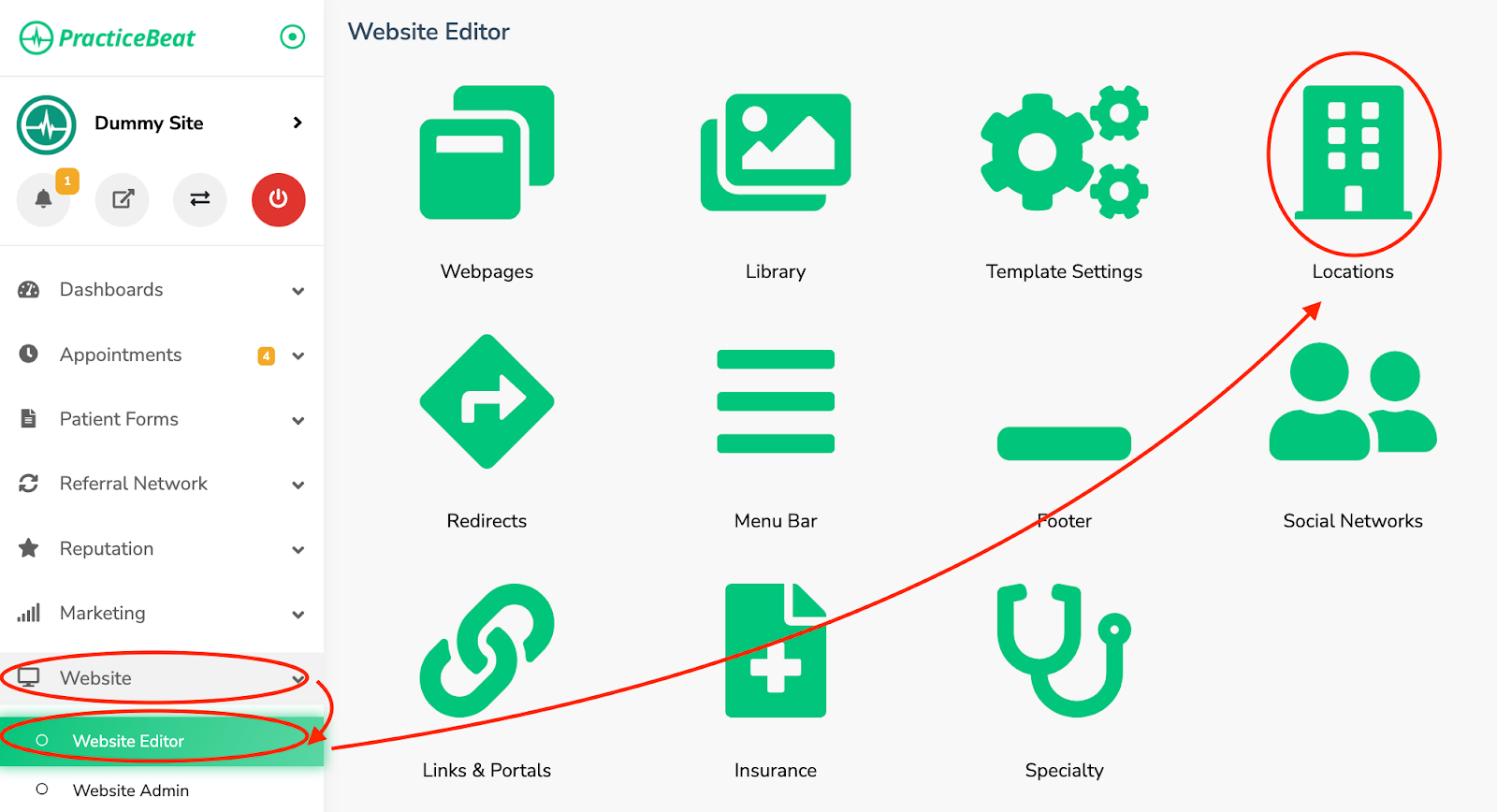
Click “Website” on the left side column; a drop-down menu will appear.
Click “Website Editor”; on the right, a tab with an icon titled “Locations” will appear; click on “Locations”.
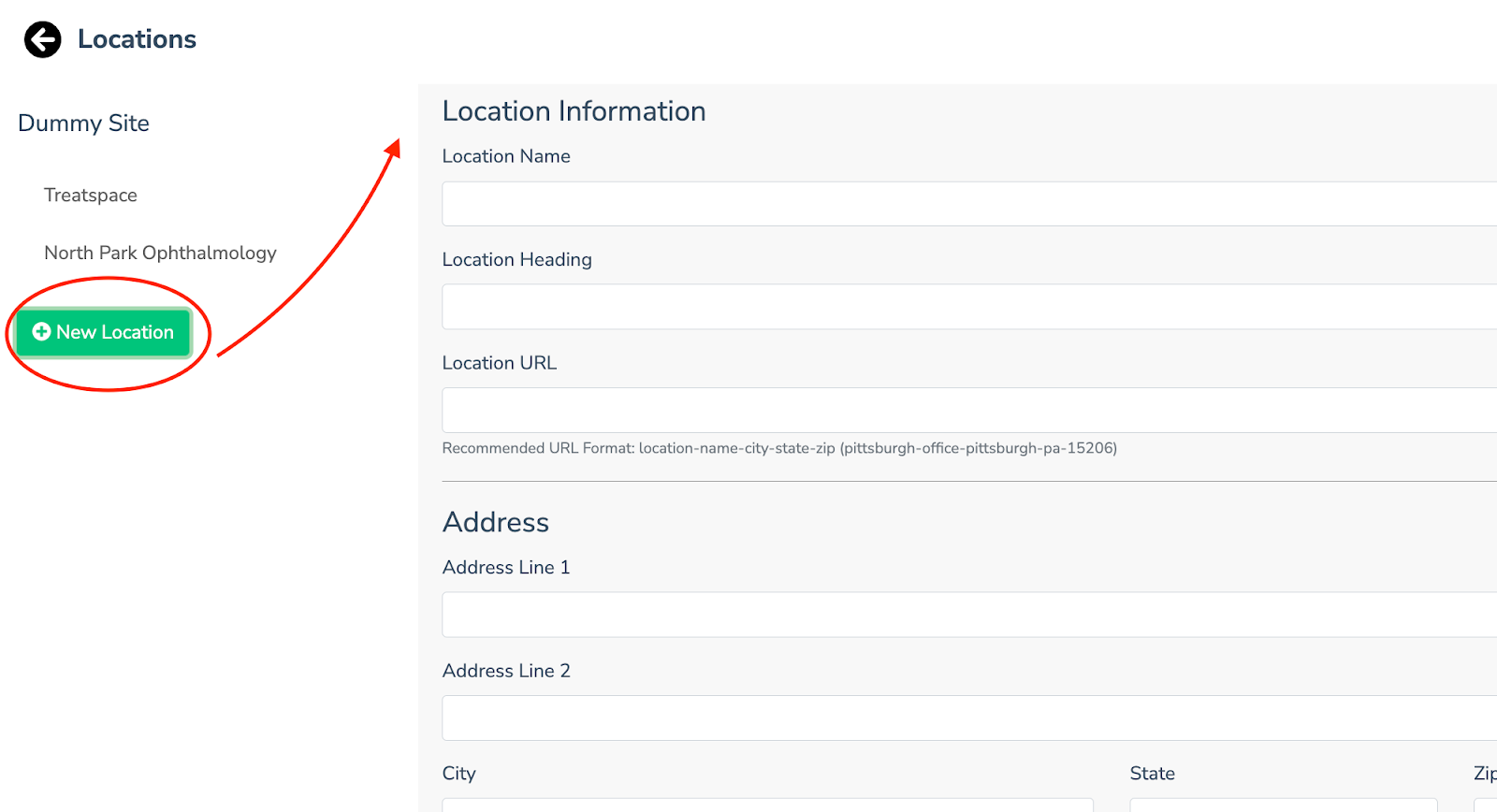
A “Locations” tab will appear. Click the “New Location” button located underneath to add a location.
A “Location Information” tab will appear. Fill out the corresponding information underneath and click the “Save” button.
To remove a location :
Log onto the PracticeBeat Dashboard.
Click “Website” on the left side column; a drop down menu will appear.
Click “Website Editor”; on the right, a tab with an icon titled “Locations” will appear; click on “Locations”.
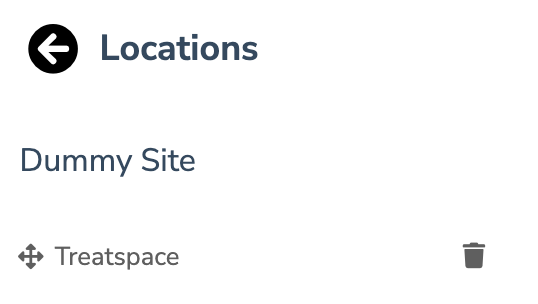
A “Locations” tab will appear with the locations of your practice underneath. Hover over the location you would like to delete until a trash icon appears. Click on the trash icon to remove this location.
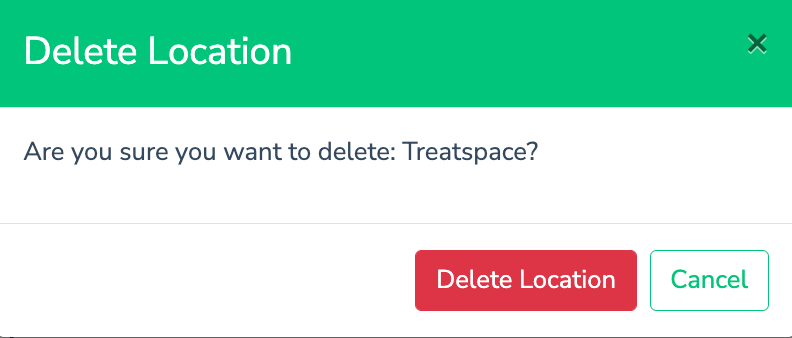
A tab will appear called “Delete Location”. Click the button “Delete Location” to remove the location.

Was this article helpful?
That’s Great!
Thank you for your feedback
Sorry! We couldn't be helpful
Thank you for your feedback
Feedback sent
We appreciate your effort and will try to fix the article