Adding providers to your website makes it easier for patients to book appointments and read about their education, training, and other certifications.
To add a provider:
Log onto the PracticeBeat Dashboard.
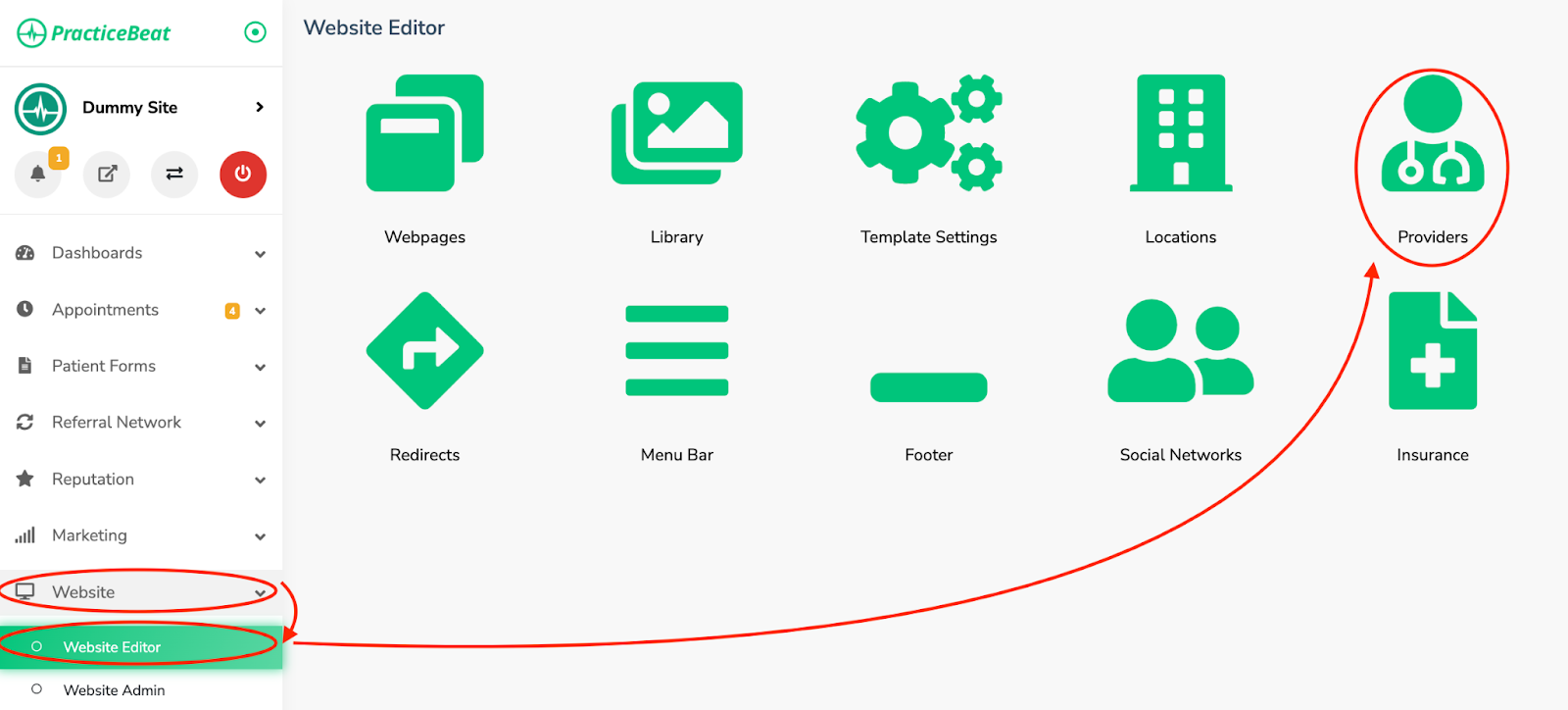
Click “Website” on the left side column; a drop-down menu will appear.
Click “Website Editor”; on the right, a tab with an icon titled “Providers” will appear; click on “Providers”.
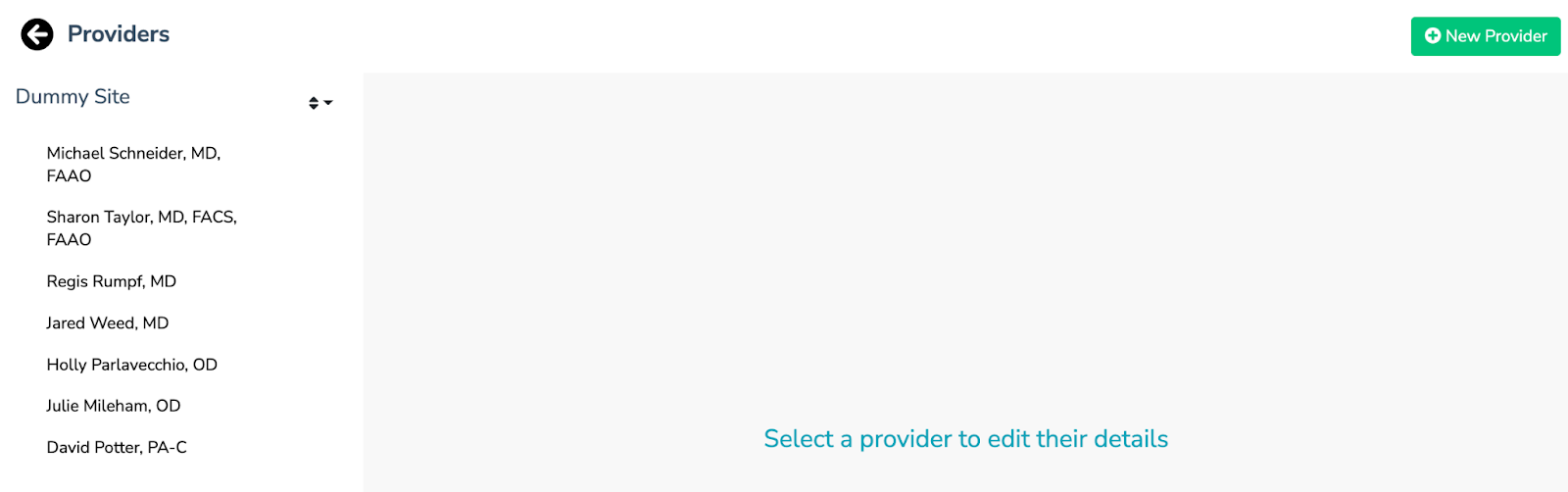
A “Providers” tab will appear. Click the “New Provider” button located on the top right of the tab to add a provider.
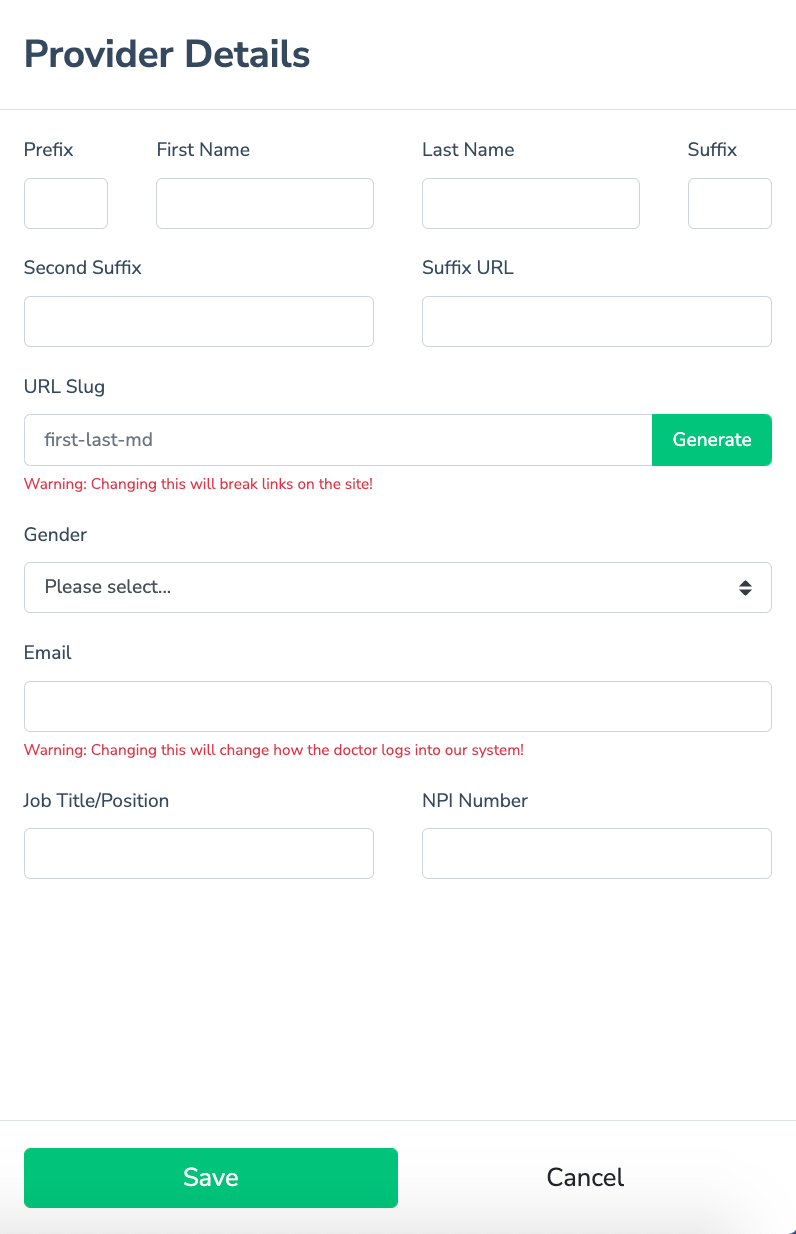
A tab will appear on the right called “Provider Details”.
You may fill out the fields labeled “Prefix,” “First Name,” “Last Name,” “Suffix,” “Second Suffix,” and the “Suffix URL”.
Click “Generate” to automatically create the “URL Slug”.
You may fill out the fields labeled “Gender,” “Email,” “Job Title/Position” and “NPI Number” if you have this information.
Click “Save” to add the provider.
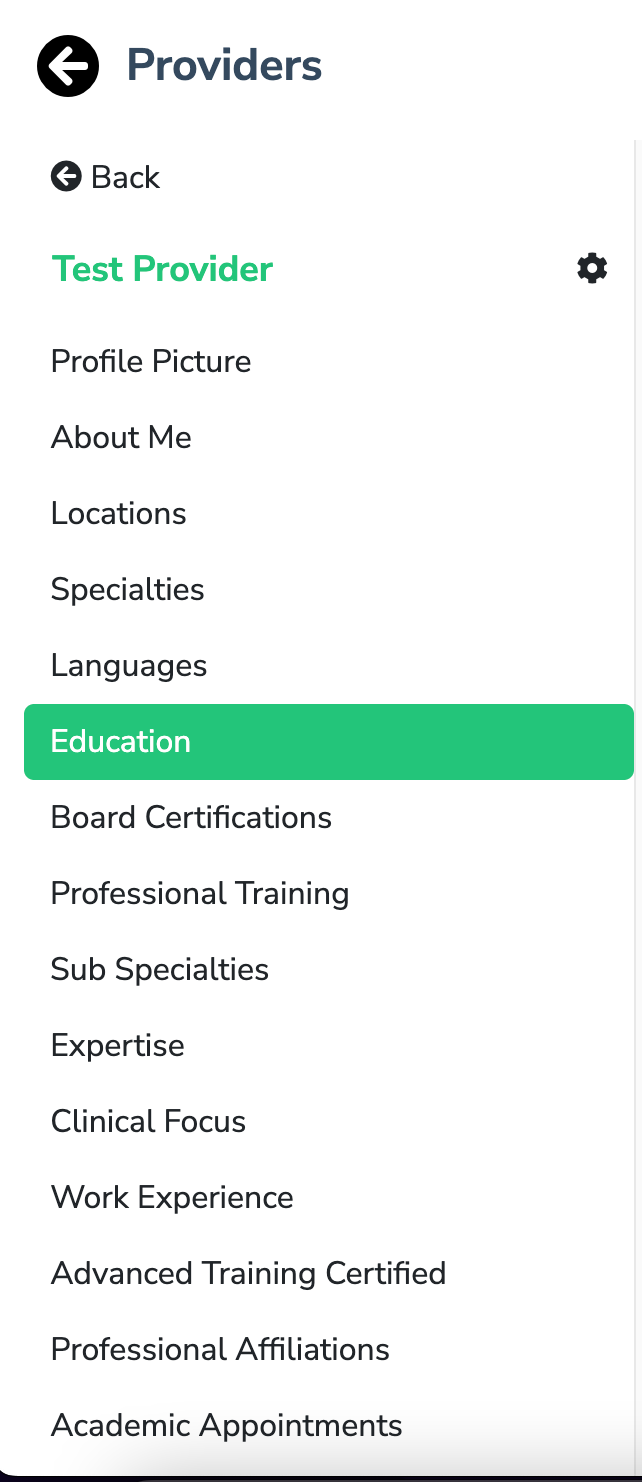
After the provider is created, click on their name within the “Providers” tab to add any additional information such as locations, education, a photo, and more.
To remove a provider:
Log onto the PracticeBeat Dashboard.
Click “Website” on the left side column; a drop-down menu will appear.
Click “Website Editor”; on the right, a tab with an icon titled “Providers” will appear; click on “Providers”.
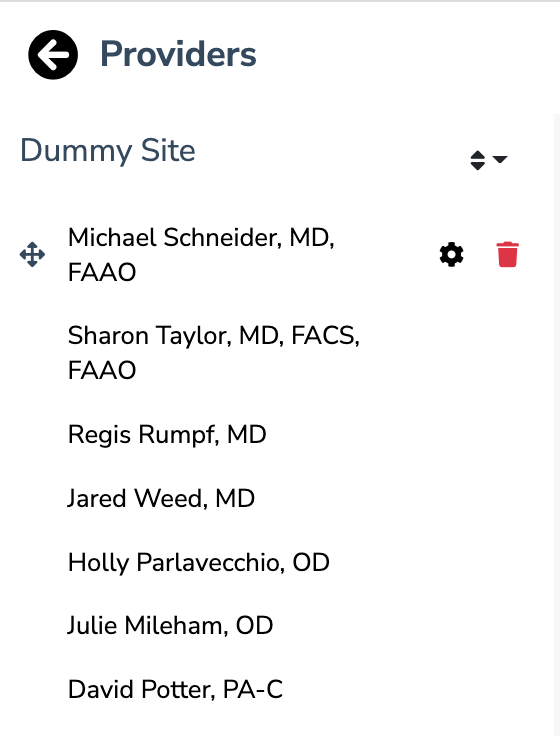
A “Providers” tab will appear. Hover over the provider you would like to remove from your list of providers located in the left column.
Click the trash icon that appears next to the provider’s name.
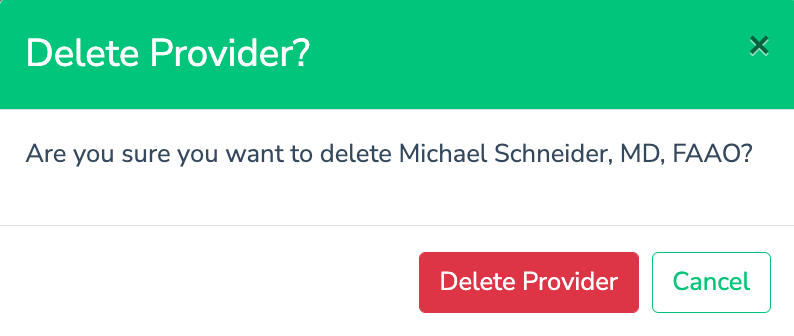
A tab will appear called “Delete Provider?”. Click the button “Delete Provider” to remove the provider.
Was this article helpful?
That’s Great!
Thank you for your feedback
Sorry! We couldn't be helpful
Thank you for your feedback
Feedback sent
We appreciate your effort and will try to fix the article