Adding a social network allows patients more ways to stay updated and informed on your practice, providers, or offices. It can additionally be used to push users to review your providers or practice on third-party services such as Google Reviews.
To add a social network:
Log onto the PracticeBeat Dashboard.
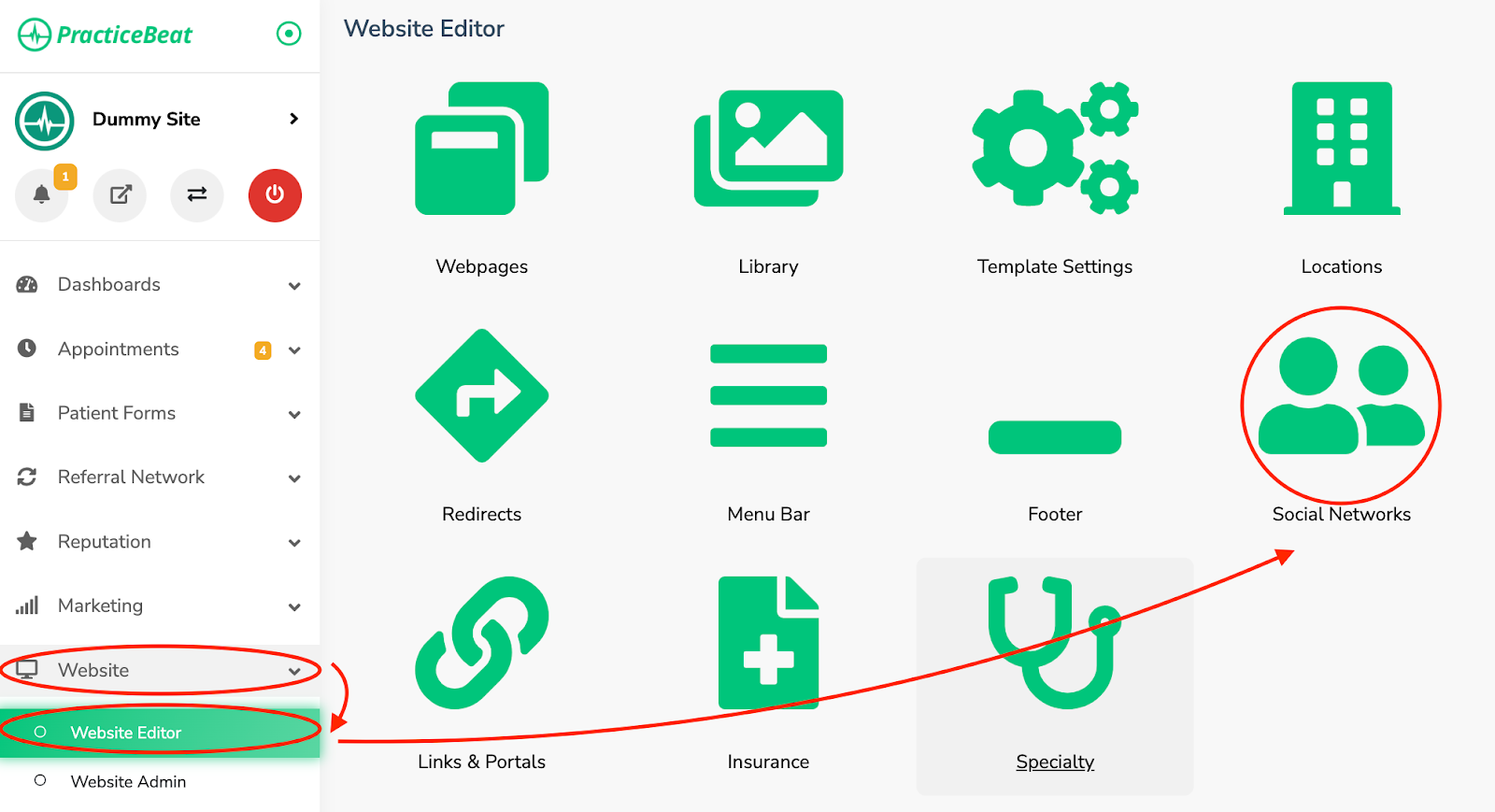
Click “Website” on the left side column; a drop-down menu will appear.
Click “Website Editor”; on the right, a tab with an icon titled “Social Networks” will appear; click on “Social Networks”.
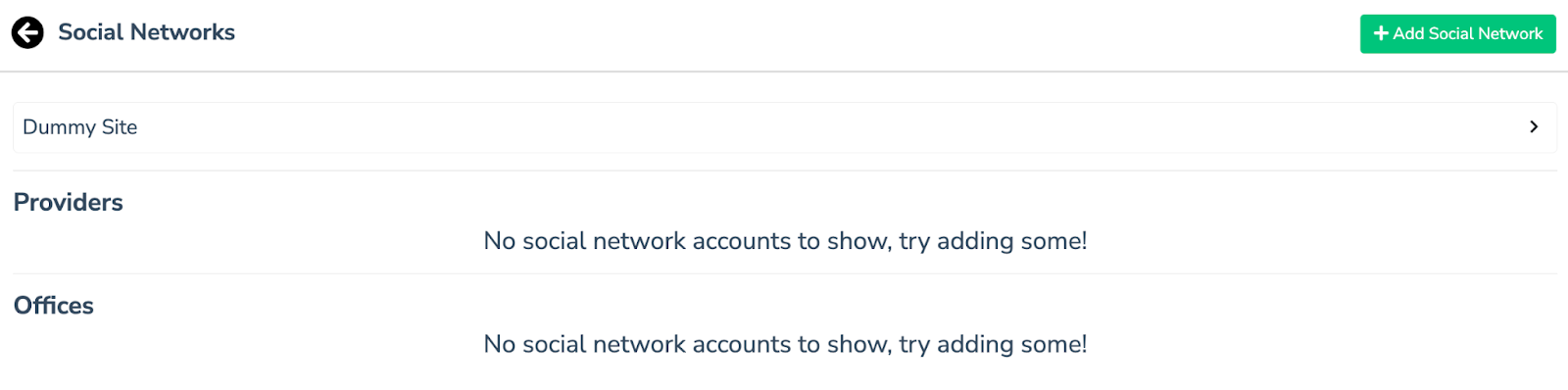
A “Social Networks” tab will appear. Click on the “Add Social Network” button located on the top right.
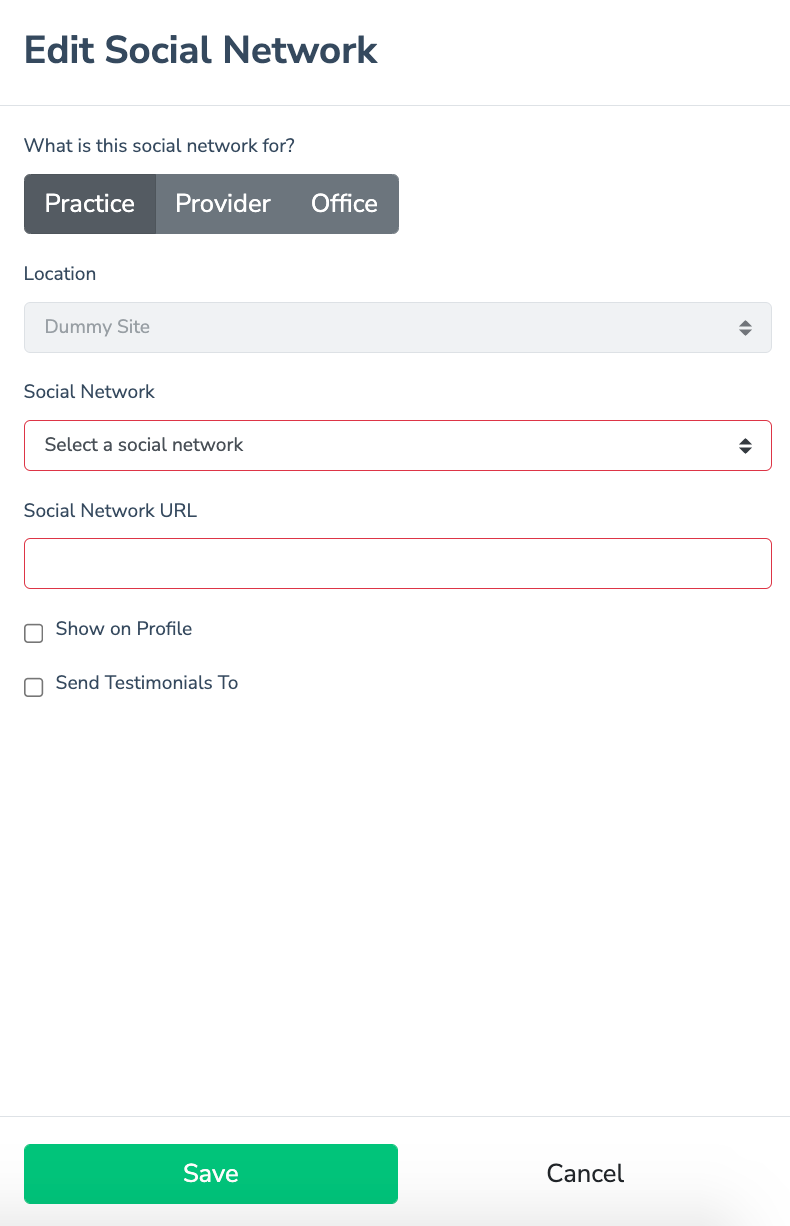
An “Edit Social Network” tab will appear. Pick who the social network is for by clicking on the “Practice”, “Provider”, or “Office” buttons.
Choose the social network you would like to link up with by clicking on the “Social Network” field from the drop-down selection.
Fill out the “Social Network URL” field from the drop-down selection. This will be the website address you would like to direct users to.
You have the option to show these social networks on the provider’s profile or practice site. If you would like to do so, check the box next to “Show on Profile”.
You also have the option to send testimonials to third-party services such as Google Reviews. If you would like to do so, check the box next to “Send Testimonials To”.
Click “Save” at the bottom of the tab to add your social network.
Was this article helpful?
That’s Great!
Thank you for your feedback
Sorry! We couldn't be helpful
Thank you for your feedback
Feedback sent
We appreciate your effort and will try to fix the article