Updating your site styles allows you to customize the fonts and colors for the text displayed on your site.
To update your site styles:
Log onto the PracticeBeat Dashboard.
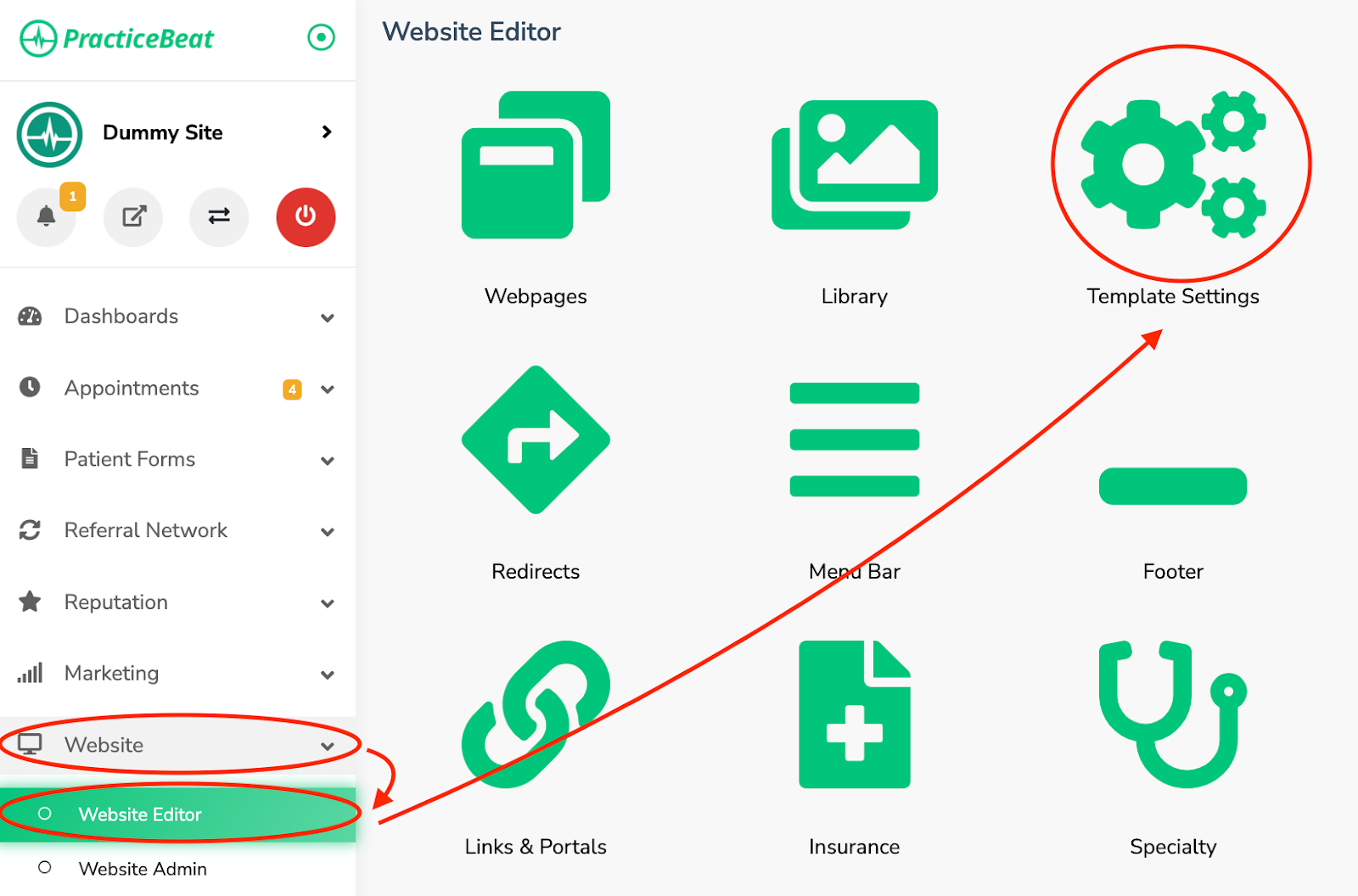
Click “Website” on the left side column; a drop-down menu will appear.
Click “Website Editor”; on the right, a tab with an icon titled “Template Settings” will appear; click on “Template Settings”.
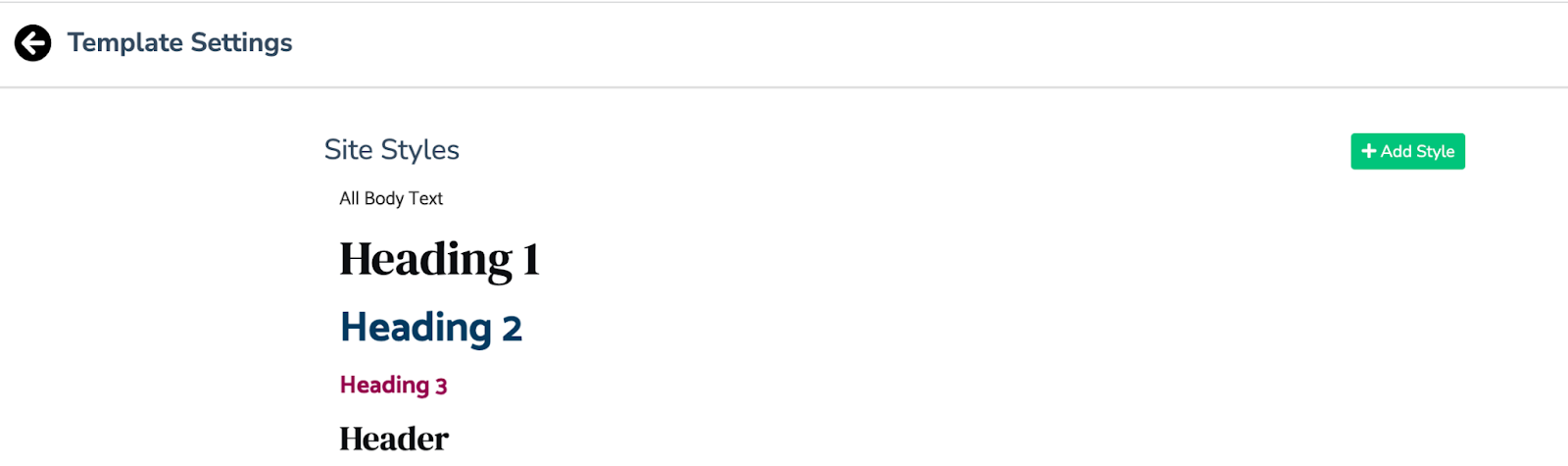
A “Template Settings” tab will appear. Scroll down until you see “Site Styles”. Click the “Add Style” button located to the right to add a style.
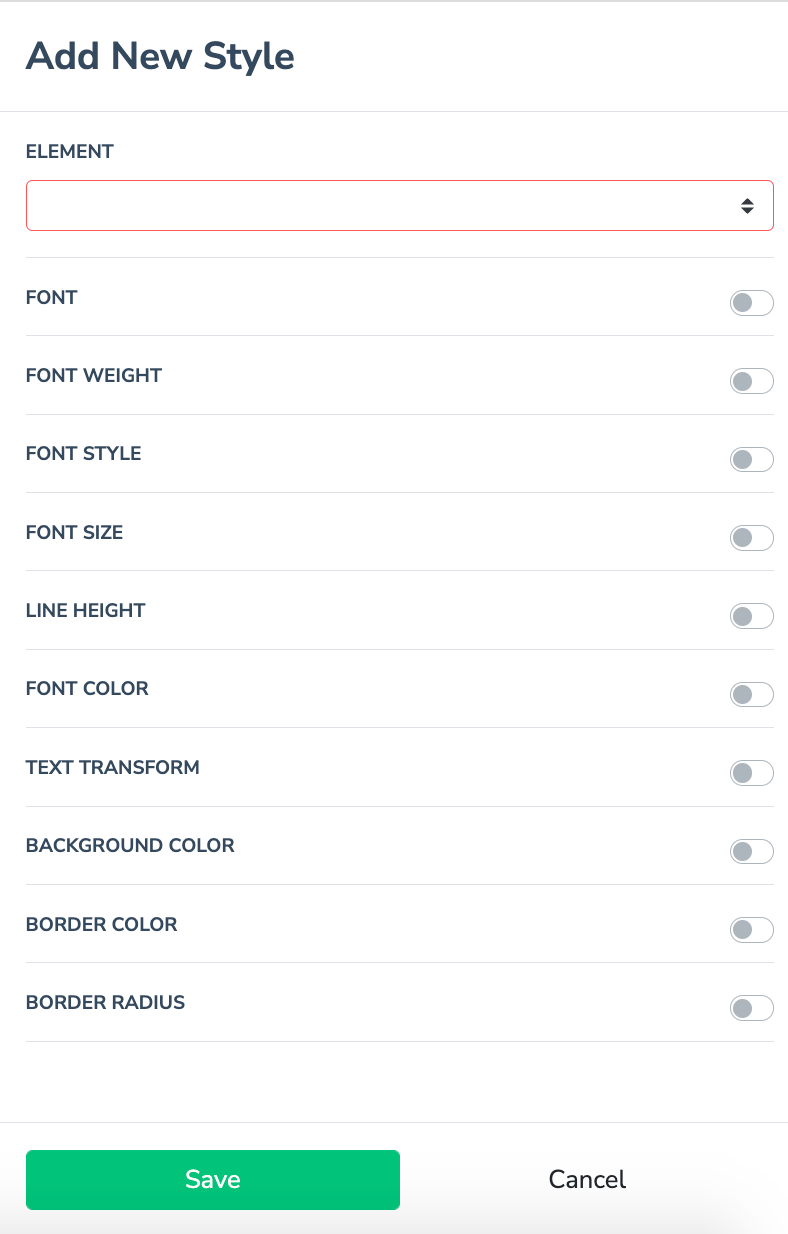
An “Add New Style Tab” will appear. Choose an “Element” from the drop-down menu.
Toggle on or off the rest of the fields below. If you toggle a field on, you can select an option from the drop-down menus below.
Click “Save” to add/update your site styles. The style will then be added to your list under “Site Styles” and will immediately apply the desired effect across all elements on the website that meet the criteria (All "Heading 1" styles will apply to all heading level 1's across the site. All "Paragraph" styles will apply to all paragraph's across the site).
Was this article helpful?
That’s Great!
Thank you for your feedback
Sorry! We couldn't be helpful
Thank you for your feedback
Feedback sent
We appreciate your effort and will try to fix the article