By changing your website's template, you can easily alter the format and look of your website.
To change your template:
Log onto the PracticeBeat Dashboard.
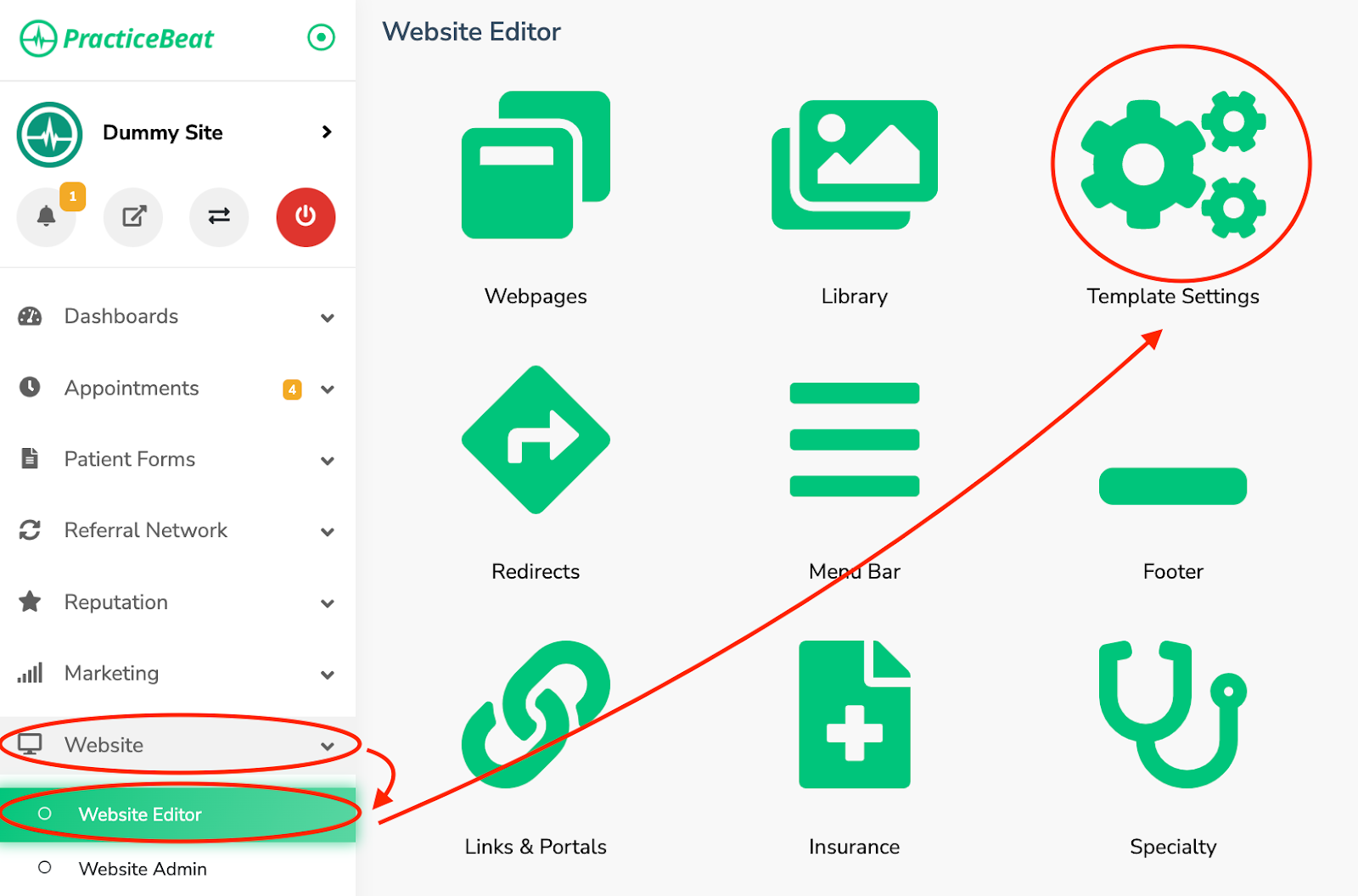
Click “Website” on the left side column; a drop-down menu will appear.
Click “Website Editor”; on the right, a tab with an icon titled “Template Settings” will appear; click on “Template Settings”.
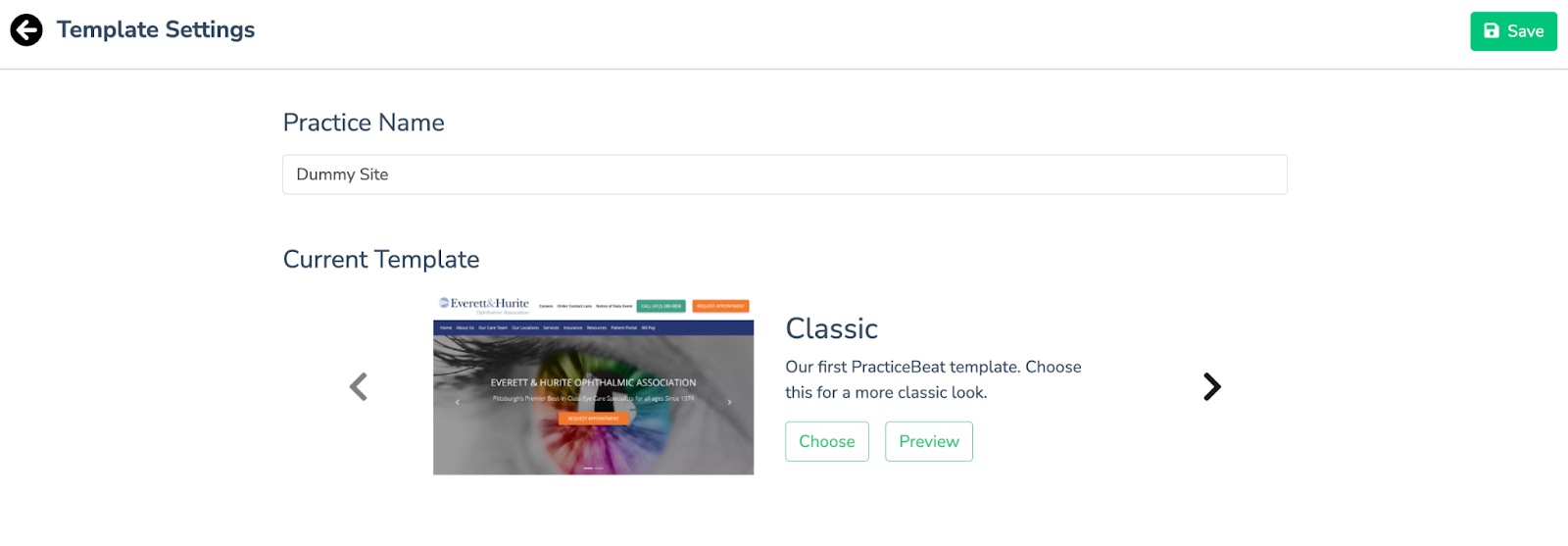
A “Template Settings” tab will appear. Underneath the heading “Current Template” you will see the templates offered. There are several templates: to view each one, click on the left and right arrows.
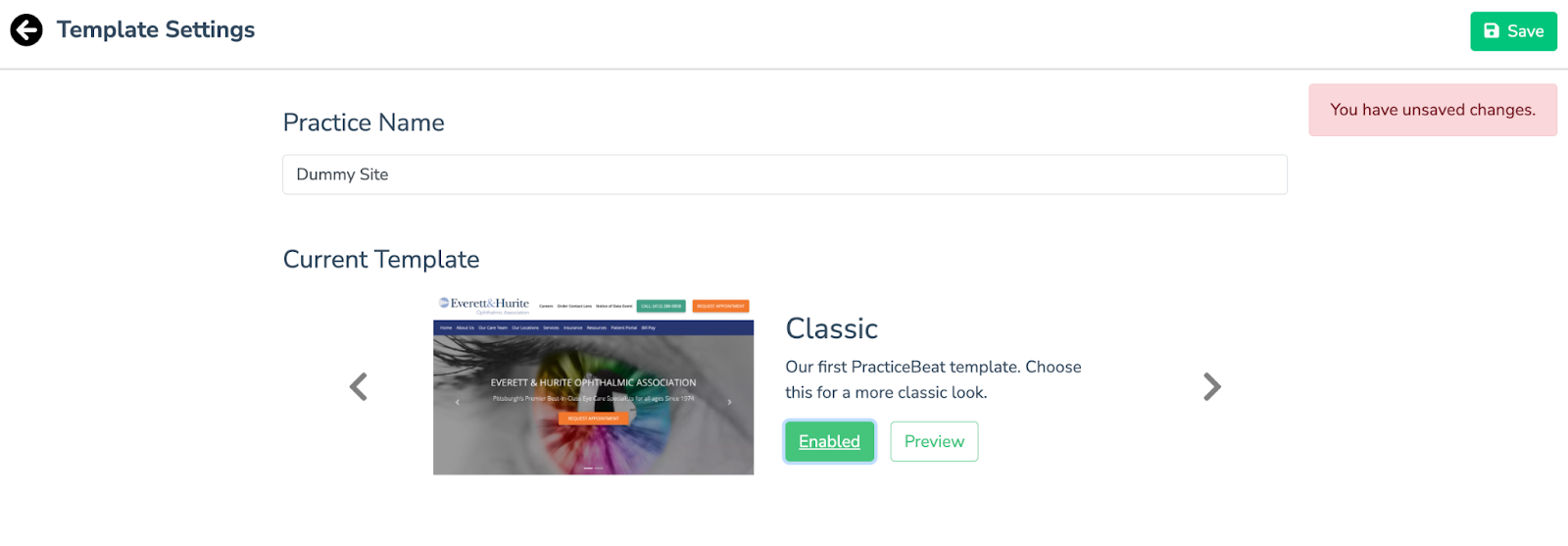
Click “Preview” to see an example of the template. Otherwise, click “Choose” to pick a template. The button will change to “Enabled” once clicked.
Click “Save” on the top right of the tab to save your updated template.
Was this article helpful?
That’s Great!
Thank you for your feedback
Sorry! We couldn't be helpful
Thank you for your feedback
Feedback sent
We appreciate your effort and will try to fix the article