Adding a logo to your site makes it easier for patients to remember your brand.
To update your logo:
Log onto the PracticeBeat Dashboard.
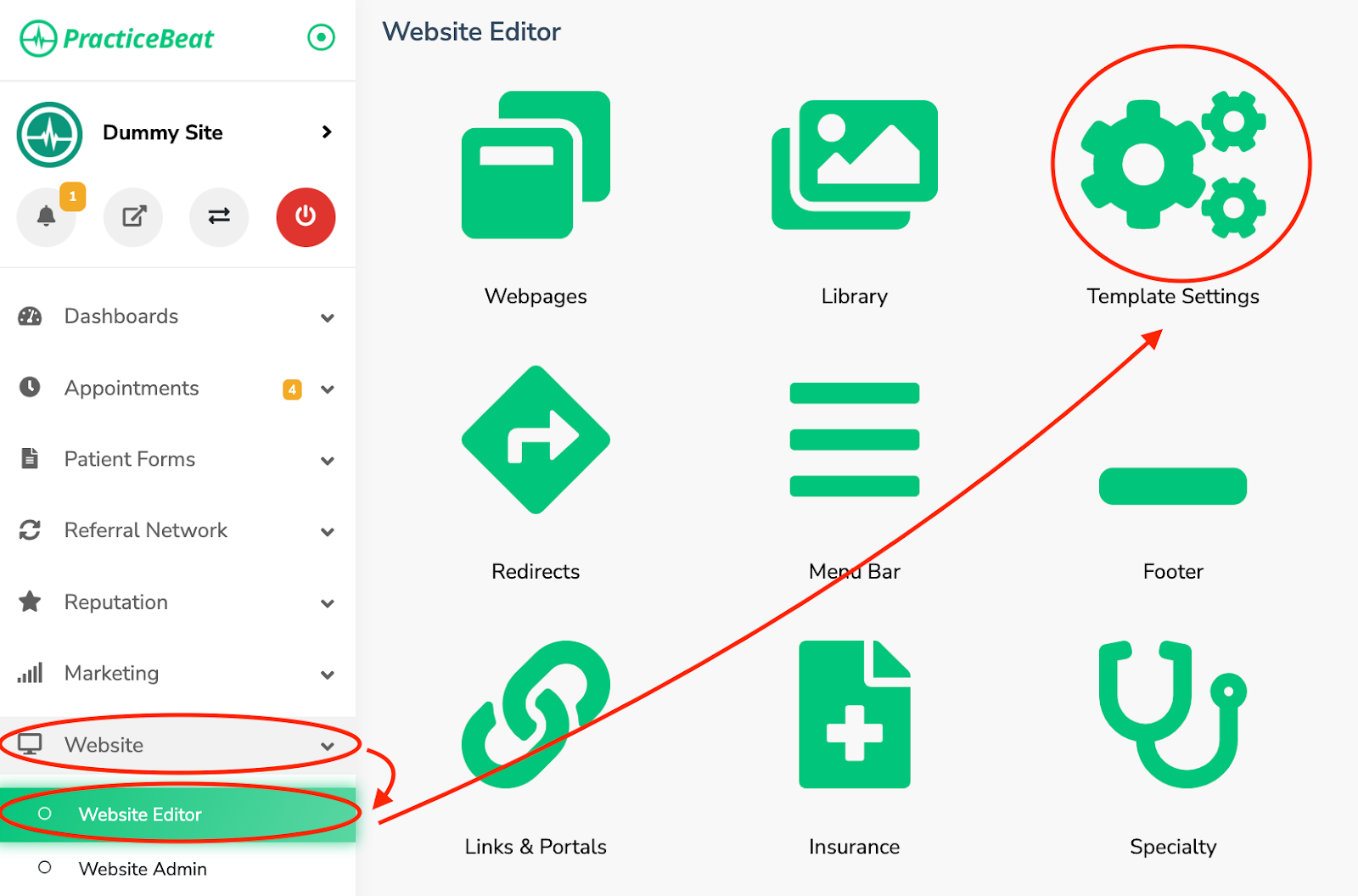
Click “Website” on the left side column; a drop-down menu will appear.
Click “Website Editor”; on the right, a tab with an icon titled “Template Settings” will appear; click on “Template Settings”.
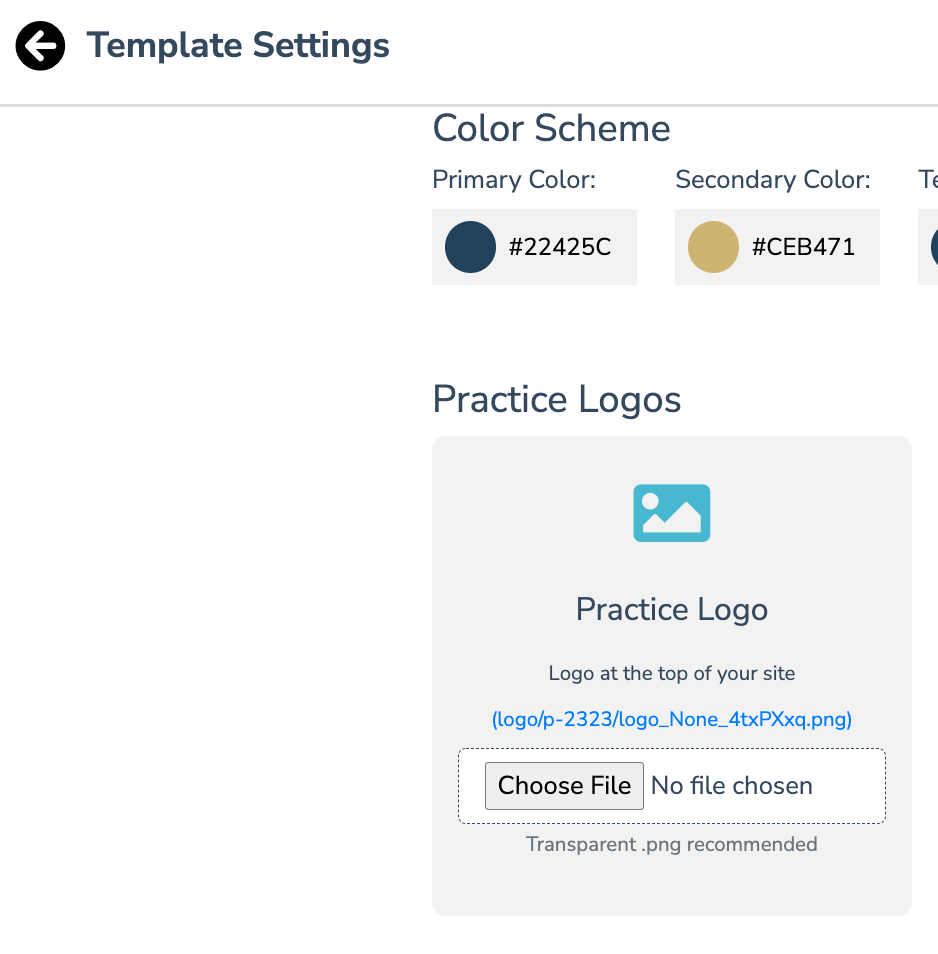
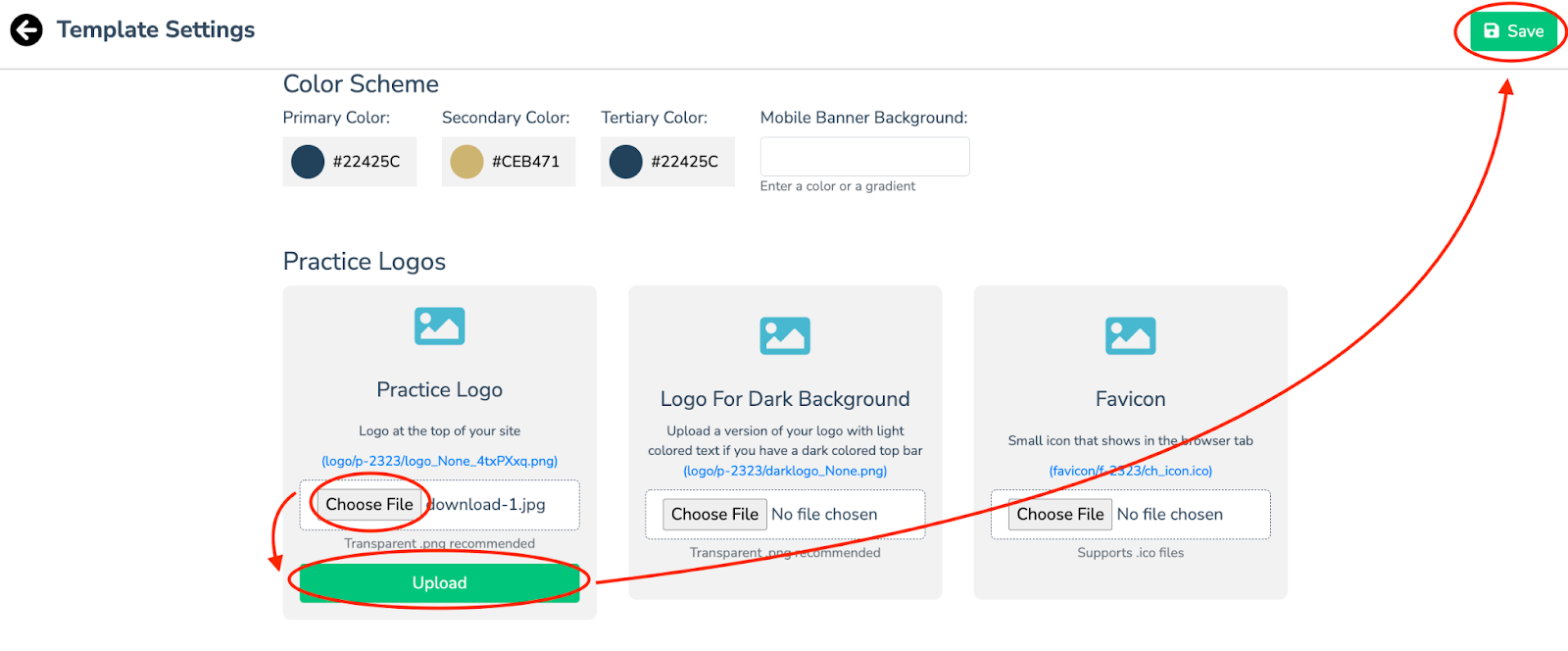
A “Template Settings” tab will appear. Scroll down until you see “Practice Logos”. Click the “Choose File” button located underneath the first box labeled "Practice Logo" to change your logo (Transparent.png is the preferred file type).
An “Upload” button will appear. Click on it to upload your logo.
If your practice uses a darker theme and a darker logo, a "Logo for Dark Background" may be required. Scroll down until you see “Practice Logos”. Click the “Choose File” button located underneath the first box labeled "Logo for Dark Background" to change your dark background logo (Transparent.png is the preferred file type).
An “Upload” button will appear. Click on it to upload your logo.
Click “Save” on the top right of the tab to save your updated logo(s).
Was this article helpful?
That’s Great!
Thank you for your feedback
Sorry! We couldn't be helpful
Thank you for your feedback
Feedback sent
We appreciate your effort and will try to fix the article