Having images saved to your library allows you to access, link, and manipulate images throughout your website with ease.
To add an image to the library:
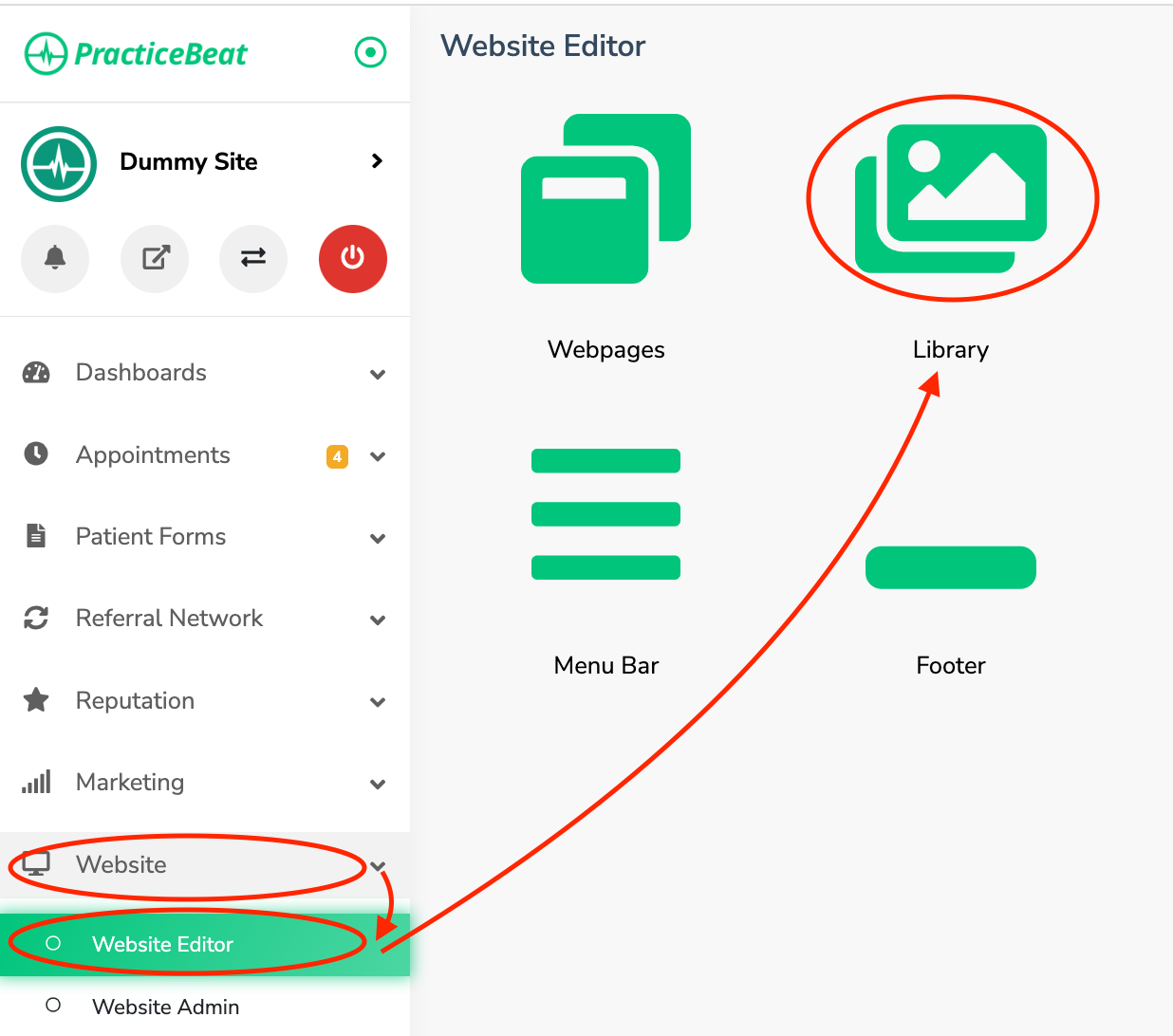
Log onto the PracticeBeat Dashboard.
Click “Website” on the left side column; a drop-down menu will appear.
Click “Website Editor”; on the right, a tab with an icon titled “Library” will appear; click on “Library”.
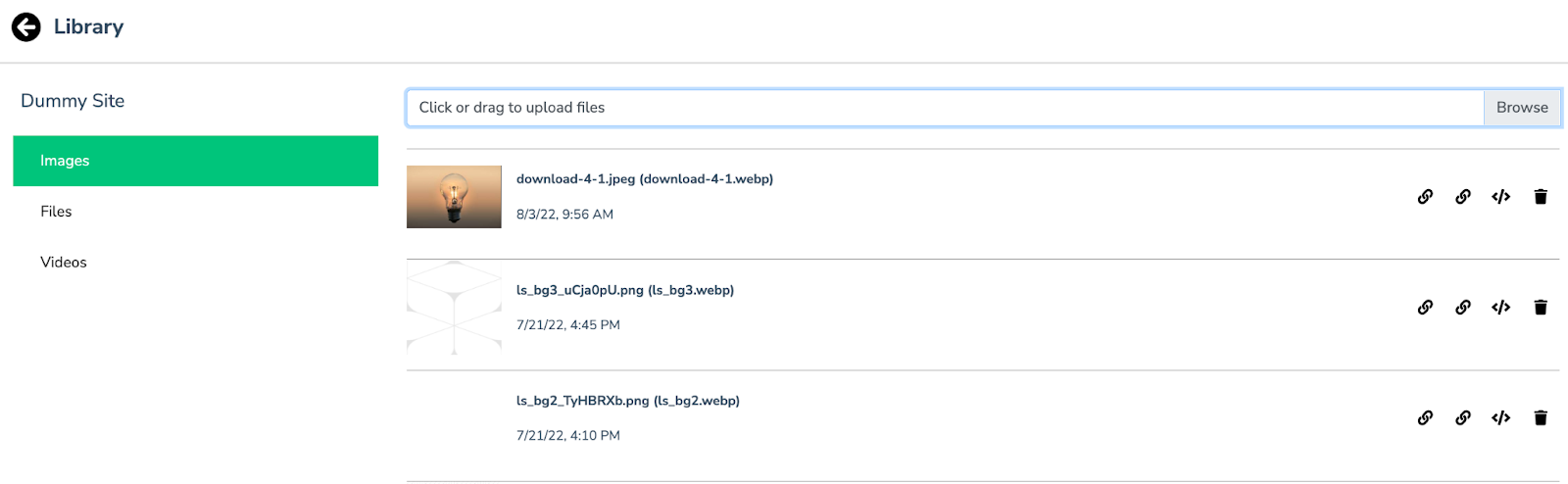
A field to “click or drag to upload files will appear.” Click this to either drag the image into the field or click to select a photo from your device.
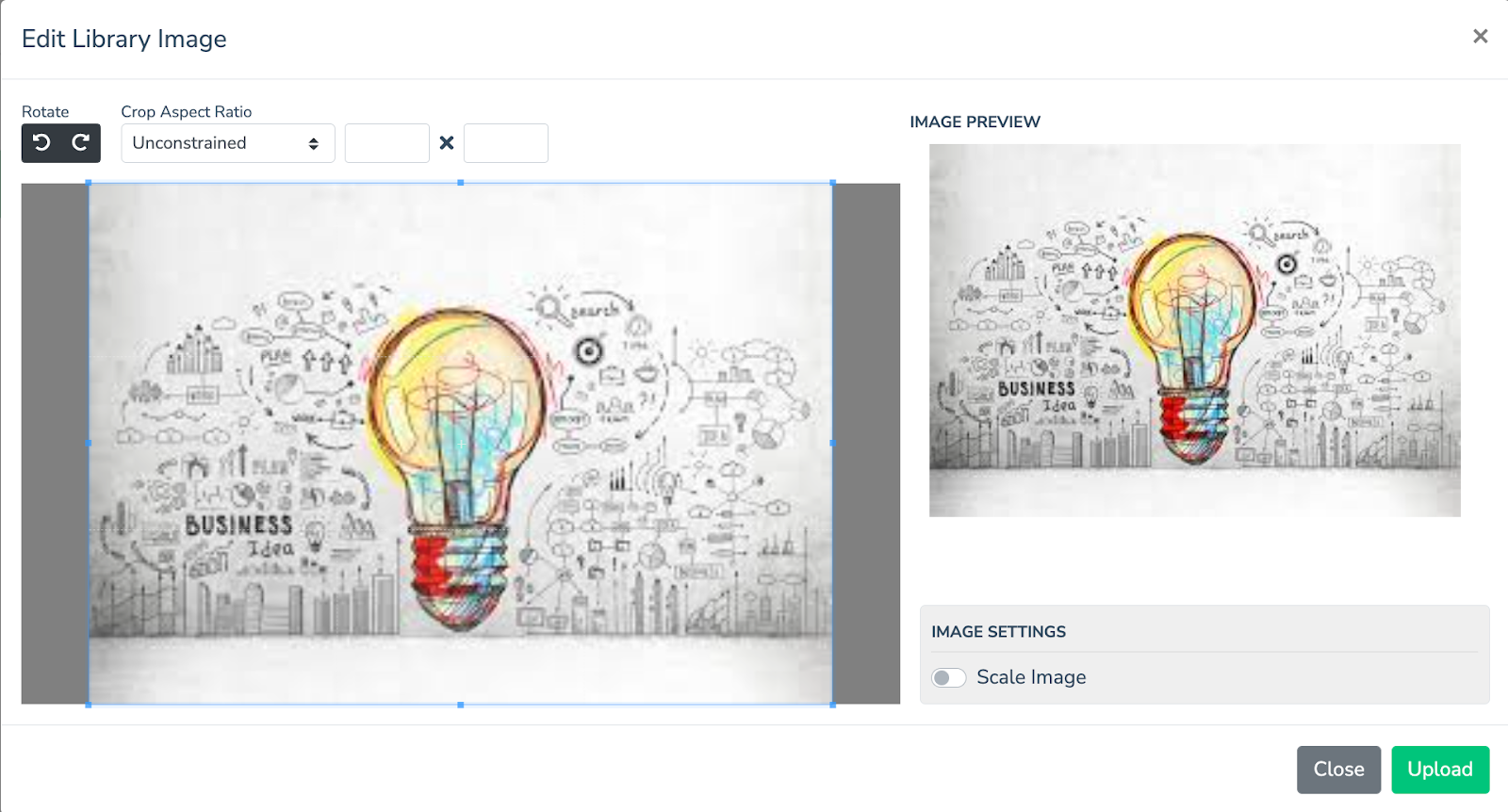
Optional: A “Resize” button will appear. Click this to rotate, crop, or control the pixel dimensions of your image.
Otherwise, click the “Upload” button to add the image to your library.

Was this article helpful?
That’s Great!
Thank you for your feedback
Sorry! We couldn't be helpful
Thank you for your feedback
Feedback sent
We appreciate your effort and will try to fix the article