A pop-up is a window that automatically opens on a website page when a user lands on the homepage of the practice. A pop-up usually includes a graphic, a title, text, and an action button. This can be useful when alerting patients of dates the practice is closed, advertising upcoming events, and more.
To create a pop-up:
Log into the PracticeBeat Dashboard.
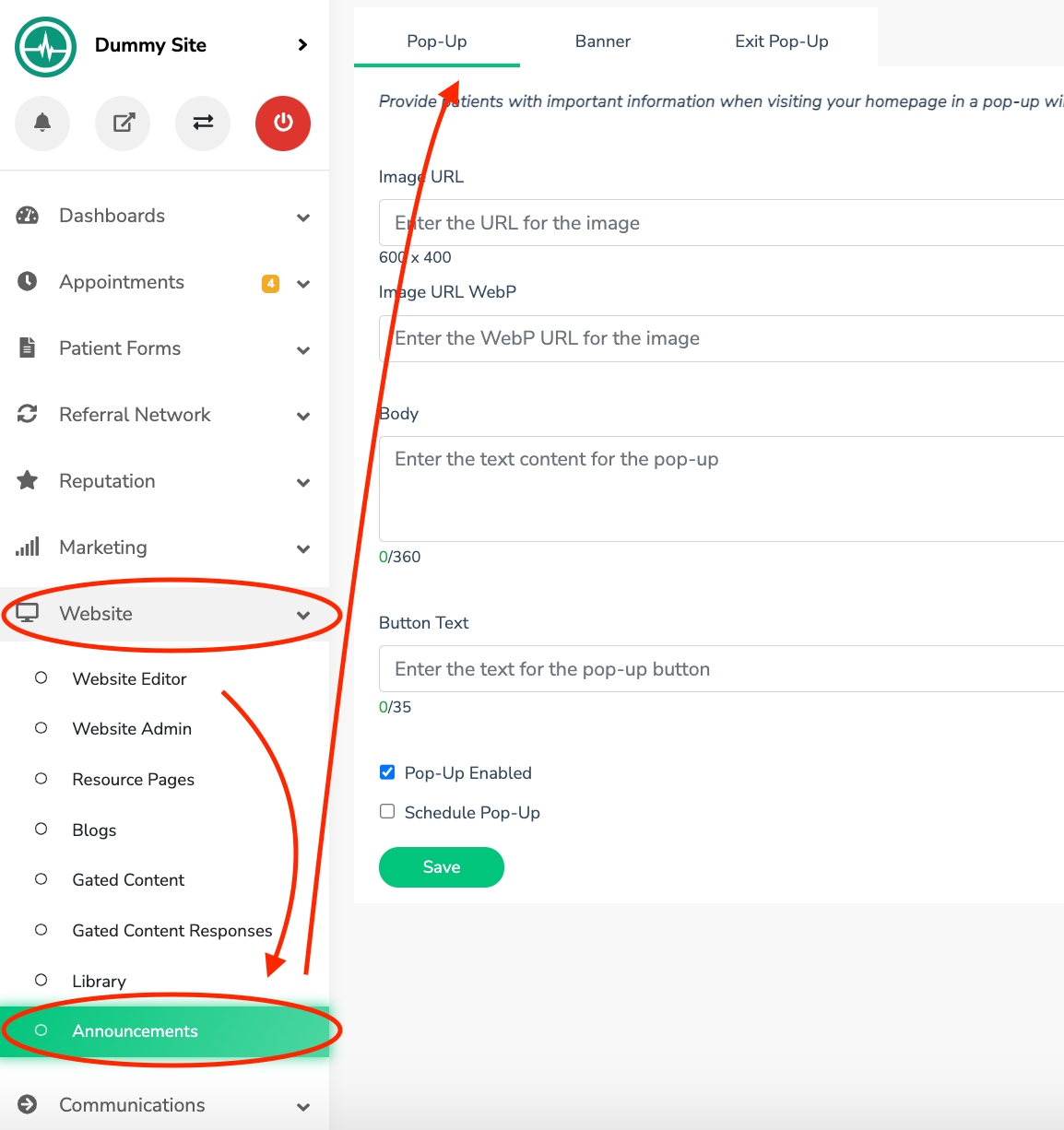
Click “Website” on the left side column; a drop-down menu will appear.
Click “Announcements”; on the right, a tab titled “Pop-Up” will appear.
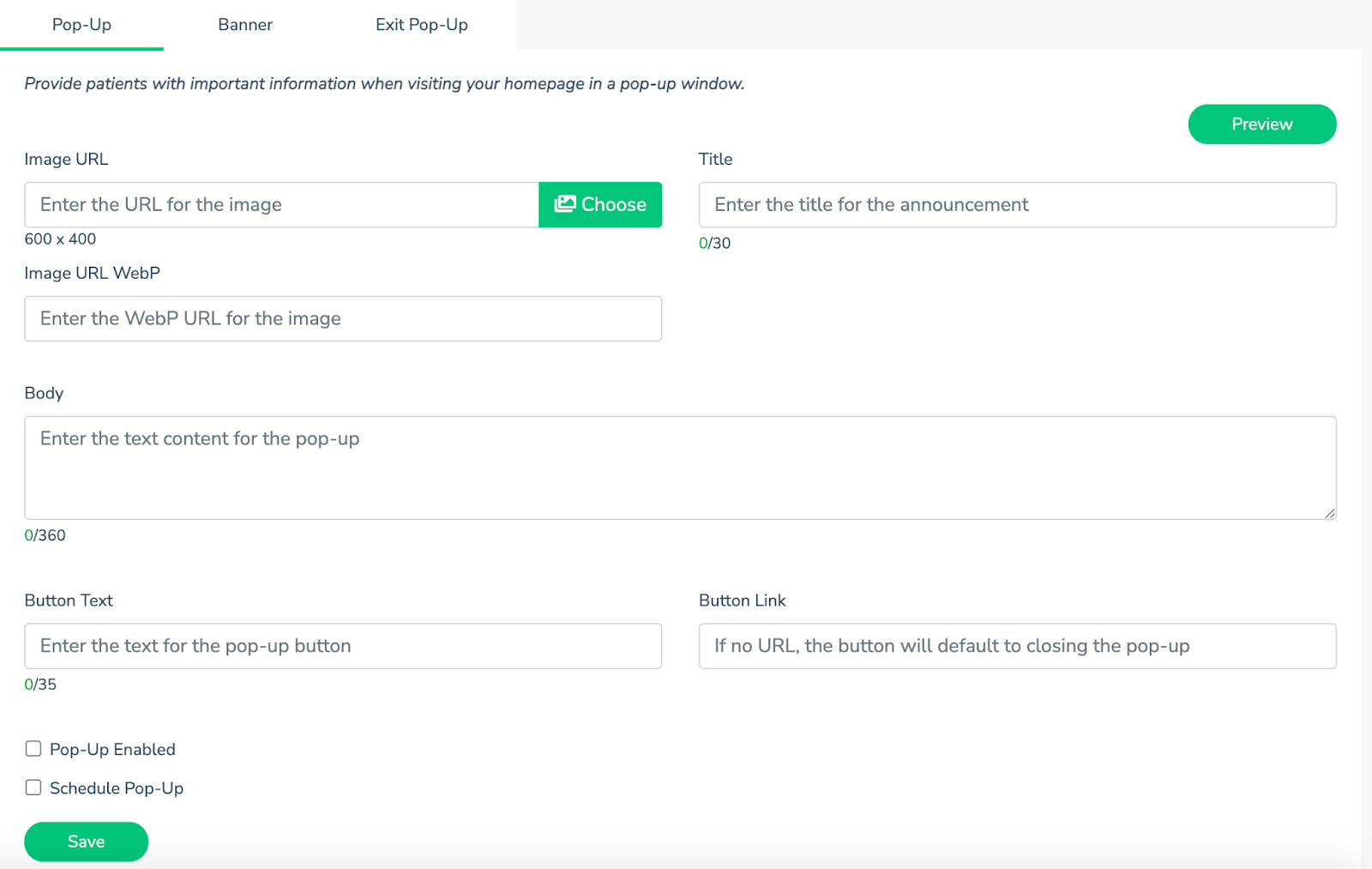
Add the “Image URL” or choose an image by clicking on the green photo icon. For an optimal pop-up, the image should be 400 pixels by 600 pixels in length (What are Pixels and What is the size of my Image).
Create a “Title” for the announcement (Note that a title can only be 30 characters at its maximum size).
Create a “Body” for the announcement (Note that the body can only be 360 characters at its maximum size).
Write the text you want to display on the button under the “Button Text” section (Note that the button text can only be 35 characters at its maximum size).
Add the link you wish to link the button to under “Button Link”; this is an optional step as the button defaults to closing the pop-up.
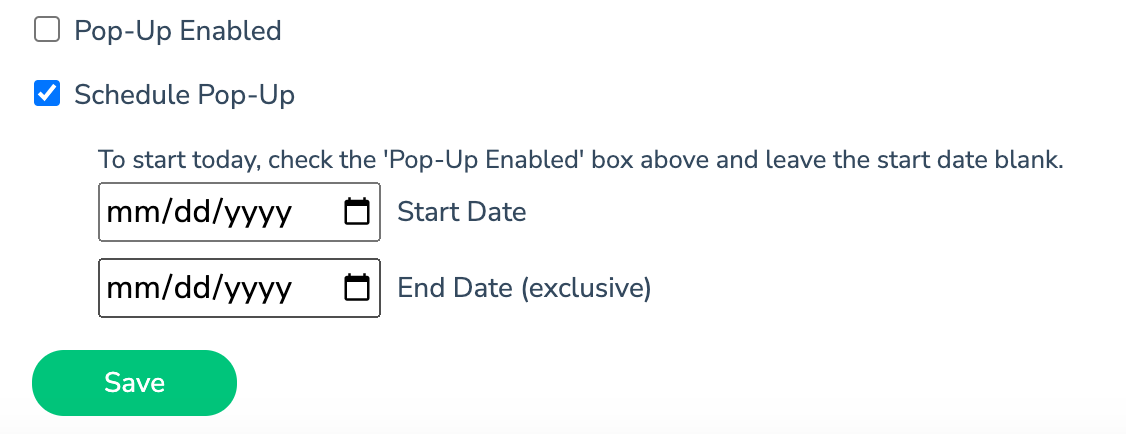
Check “Pop-Up Enabled” to immediately enable it on your website or check “Schedule Pop-Up” for a specific date range that you would like the pop-up to be live.
Click “Preview” to view your pop-up and make changes as needed.
Click “Save” to make your changes live on the site.
Was this article helpful?
That’s Great!
Thank you for your feedback
Sorry! We couldn't be helpful
Thank you for your feedback
Feedback sent
We appreciate your effort and will try to fix the article