By adding and removing insurance from the website, a user will be able to see what insurance plans your practice accepts. This makes it easier for patients to see what insurance you accept.
To add an insurance company:
Log onto the PracticeBeat Dashboard.
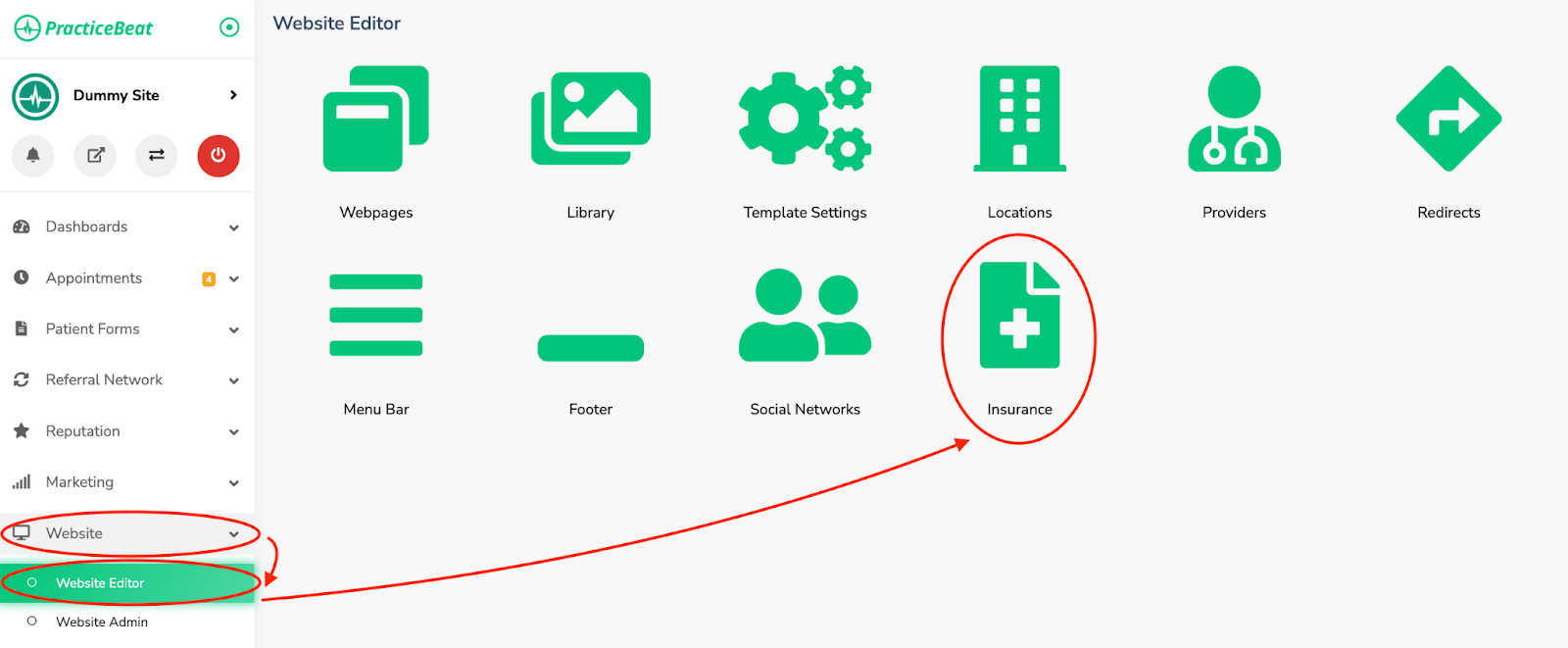
Click “Website” on the left side column; a drop-down menu will appear.
Click “Website Editor”; on the right, a tab with an icon titled “Insurance” will appear; click on “Insurance”.
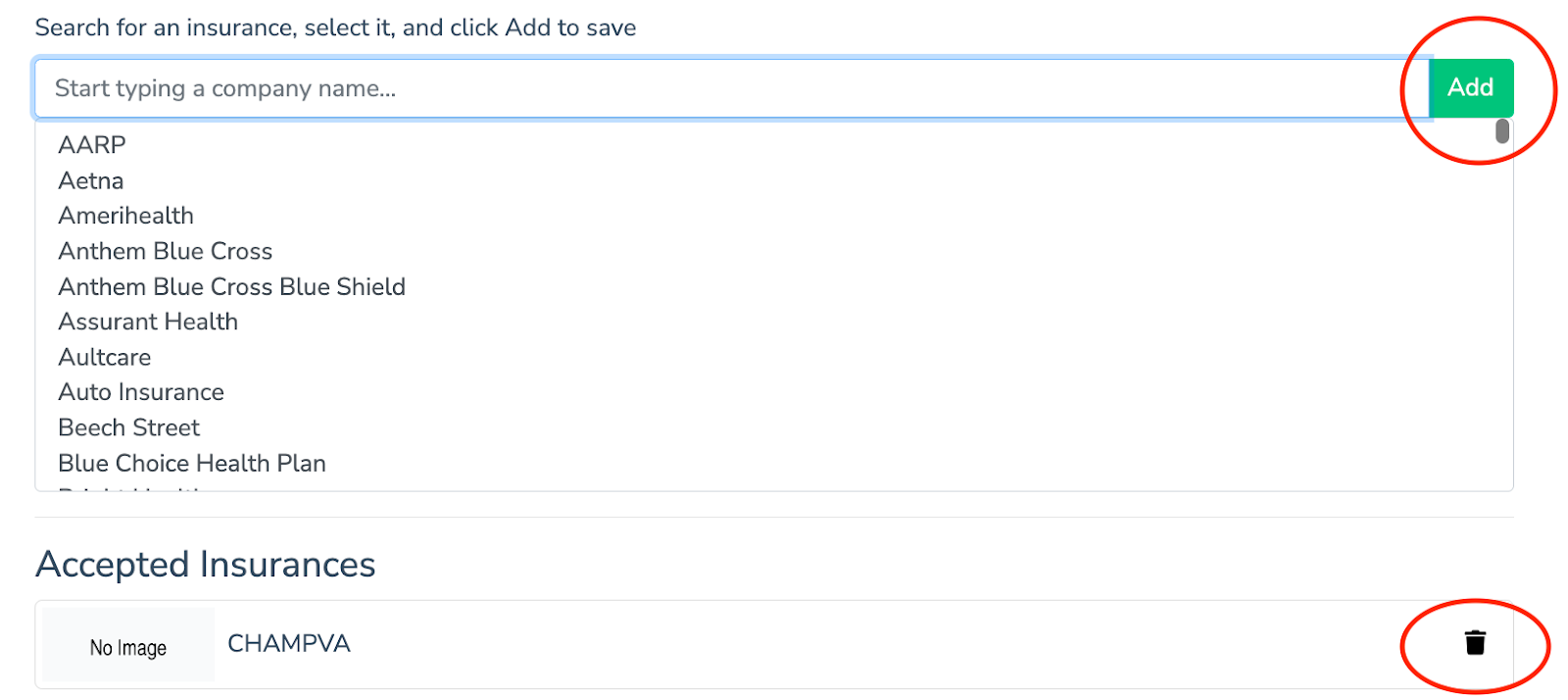
A field to type in a company name will appear; as you type, a drop-down menu with companies will populate; select the company and click “Add” to save.
The insurance company you have selected will appear under “Accepted Insurances.”
To remove an insurance company:
Log onto the PracticeBeat Dashboard.
Click “Website” on the left side column; a drop-down menu will appear.
Click “Website Editor”; on the right, a tab with an icon titled “Insurance” will appear; click on “Insurance”.
Find the company you would like to remove under “Accepted Insurances.”
Click the trash icon that appears to the right of the company name.
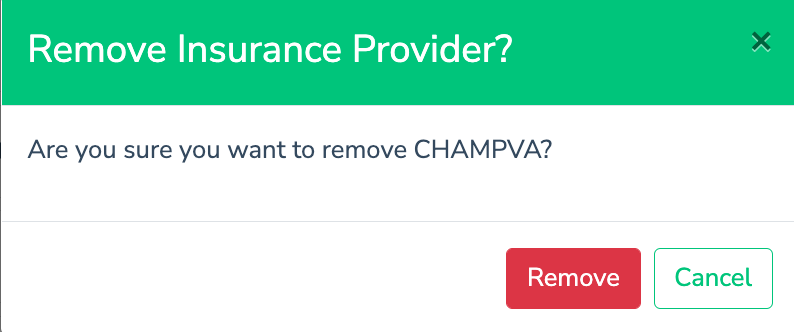
A tab called “Remove Insurance Provider?” will appear, with the option to click on the buttons “Remove” or “Cancel.”
Click the button “Remove” to remove the provider or click “Cancel” to keep the insurance company.
Was this article helpful?
That’s Great!
Thank you for your feedback
Sorry! We couldn't be helpful
Thank you for your feedback
Feedback sent
We appreciate your effort and will try to fix the article