Adding links to the header/footer makes it easier for patients to navigate your site and find the resources they need.
To add links to the header:
Log onto the PracticeBeat Dashboard.
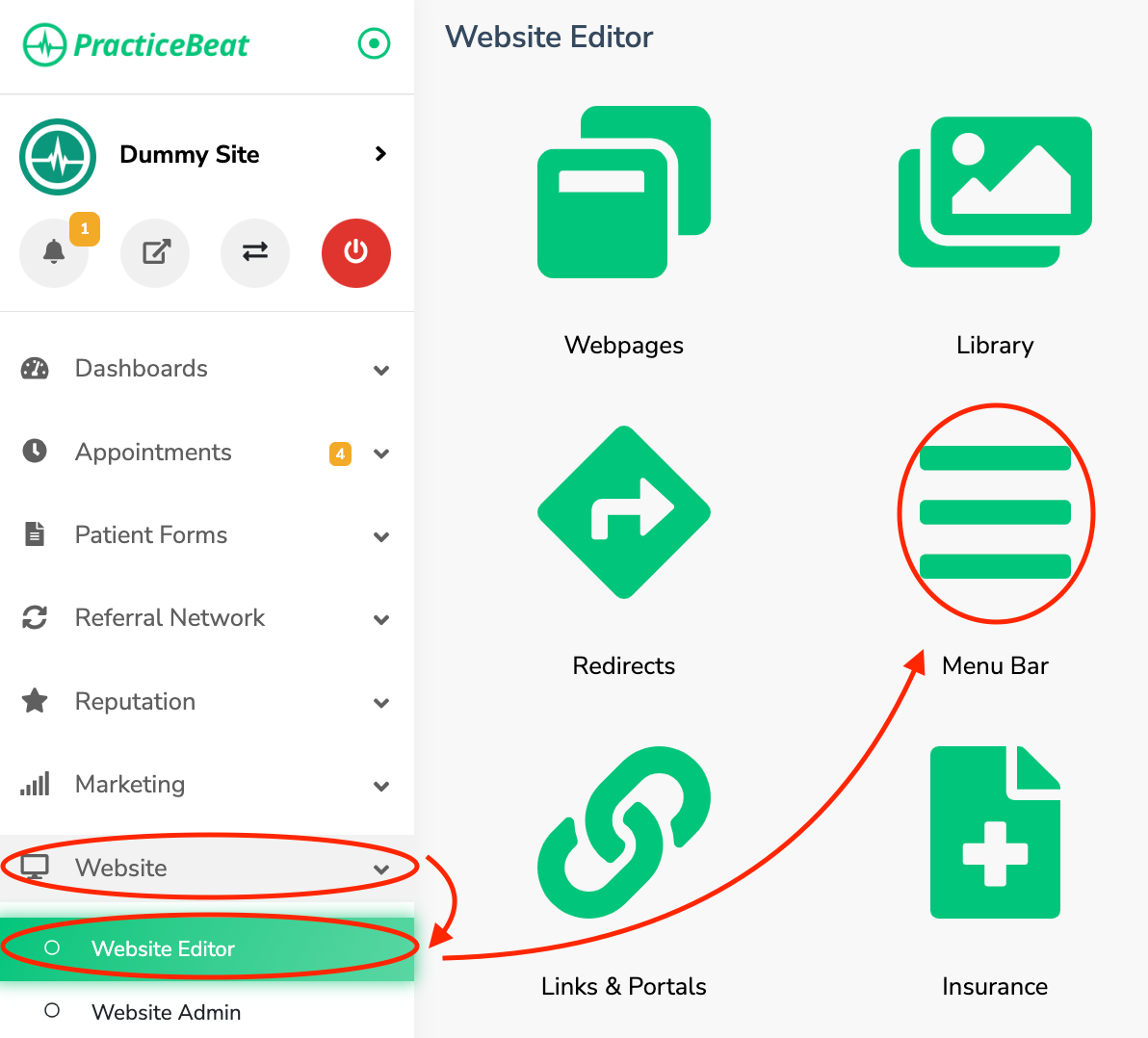
Click “Website” on the left side column; a drop-down menu will appear.
Click “Website Editor”; on the right, a tab with an icon titled “Menu Bar” will appear; click on “Menu Bar”.
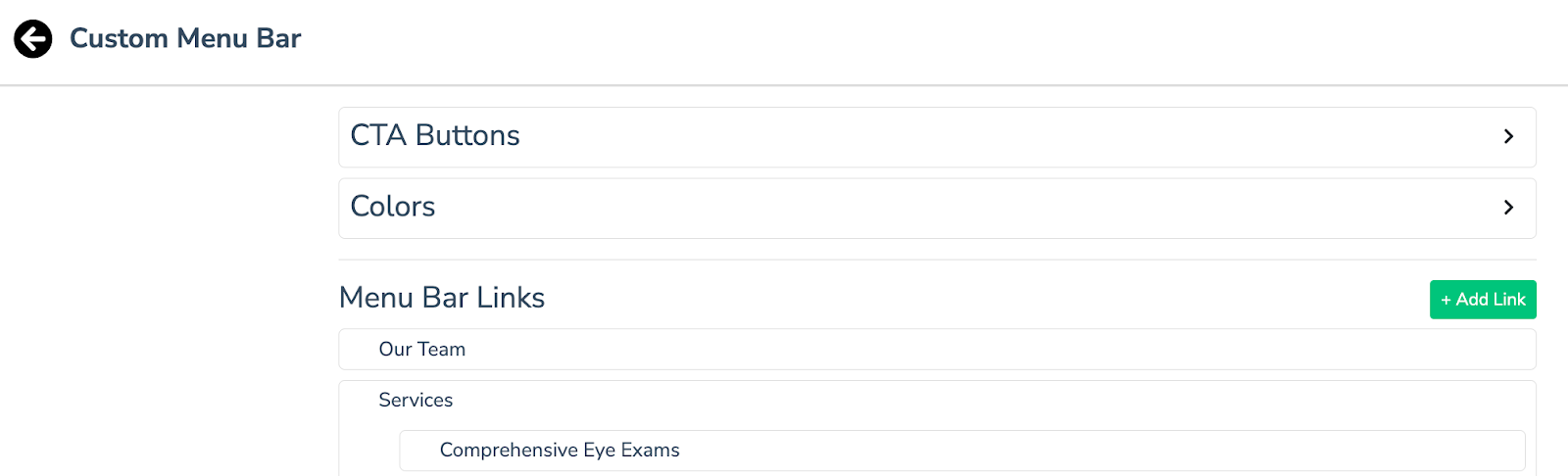
A “Custom Menu Bar” tab will appear. Click on the “Add Link” button.
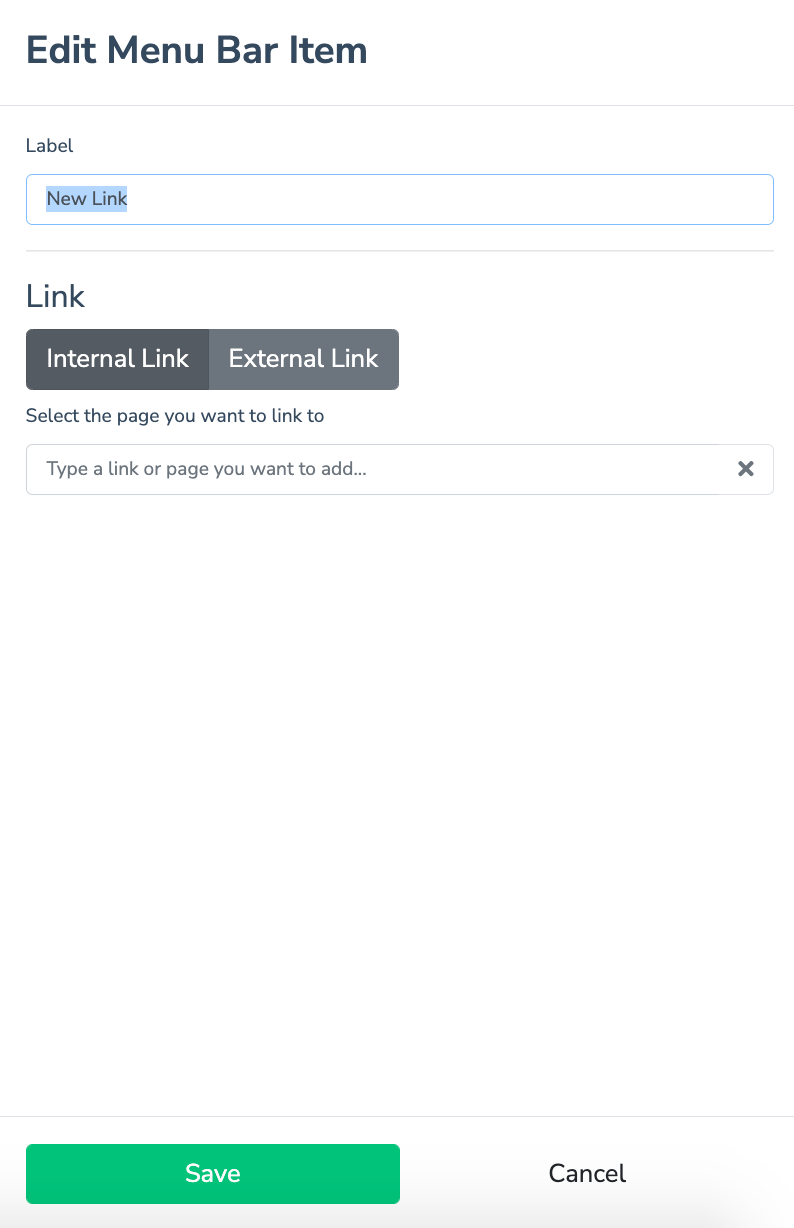
An “Edit Menu Bar Item” tab will appear. Under the field “Label” type in your link.
Click on the “Internal Link” button if when clicking on the link, you are taken to a page within your website.
Otherwise, click on the “External Link” button if when clicking on the link, you are taken to a page that is not within your website.
Select the “page you want to link to” from the dropdown menu (you may only go two containers/links deep within a single dropdown) or type in the “External Link”.
Click “Save” at the bottom of the tab to add your link. It will appear under the heading “Menu Bar Link”.
To add links to the footer:
Log onto the PracticeBeat Dashboard.
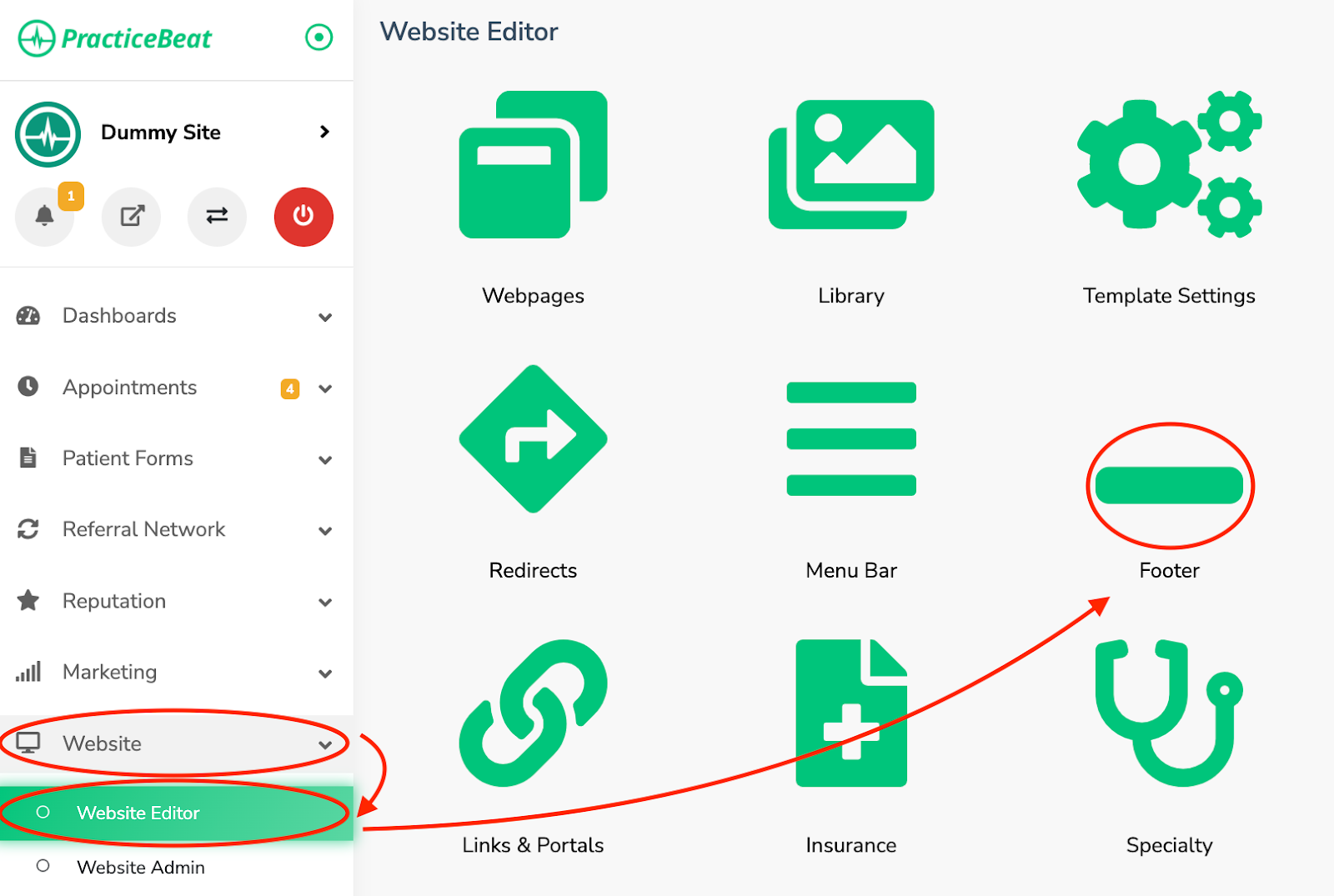
Click “Website” on the left side column; a drop-down menu will appear.
Click “Website Editor”; on the right, a tab with an icon titled “Footer” will appear; click on “Footer”.
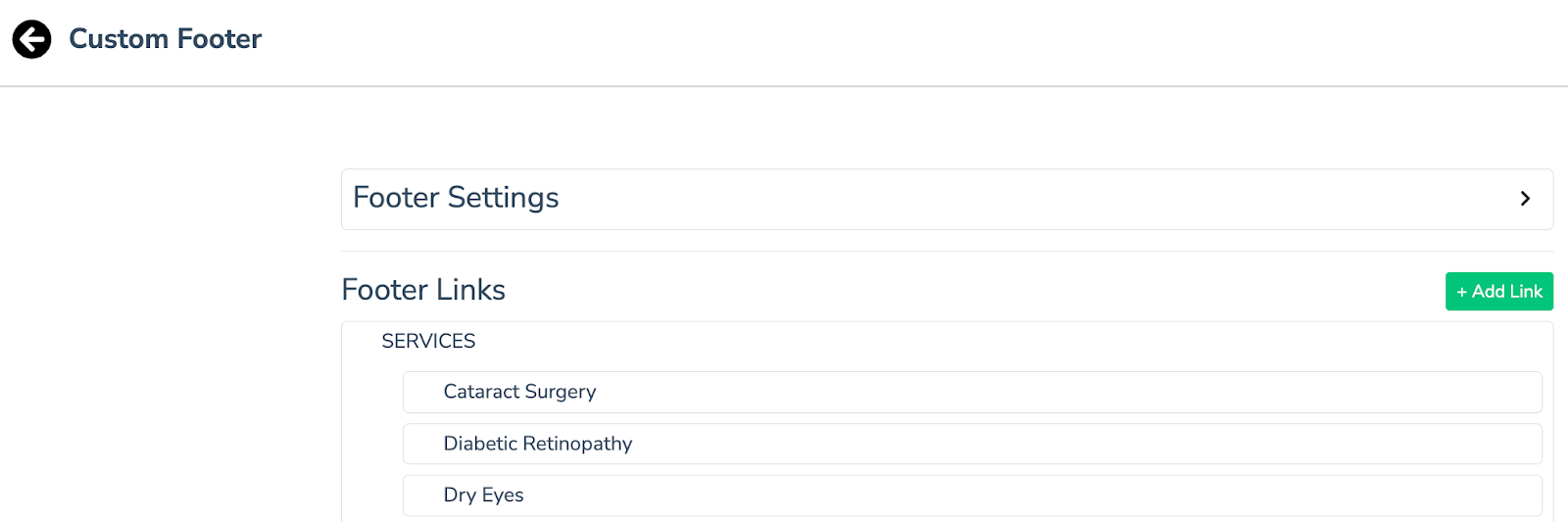
A “Custom Footer” tab will appear. Click on the “Add Link” button.
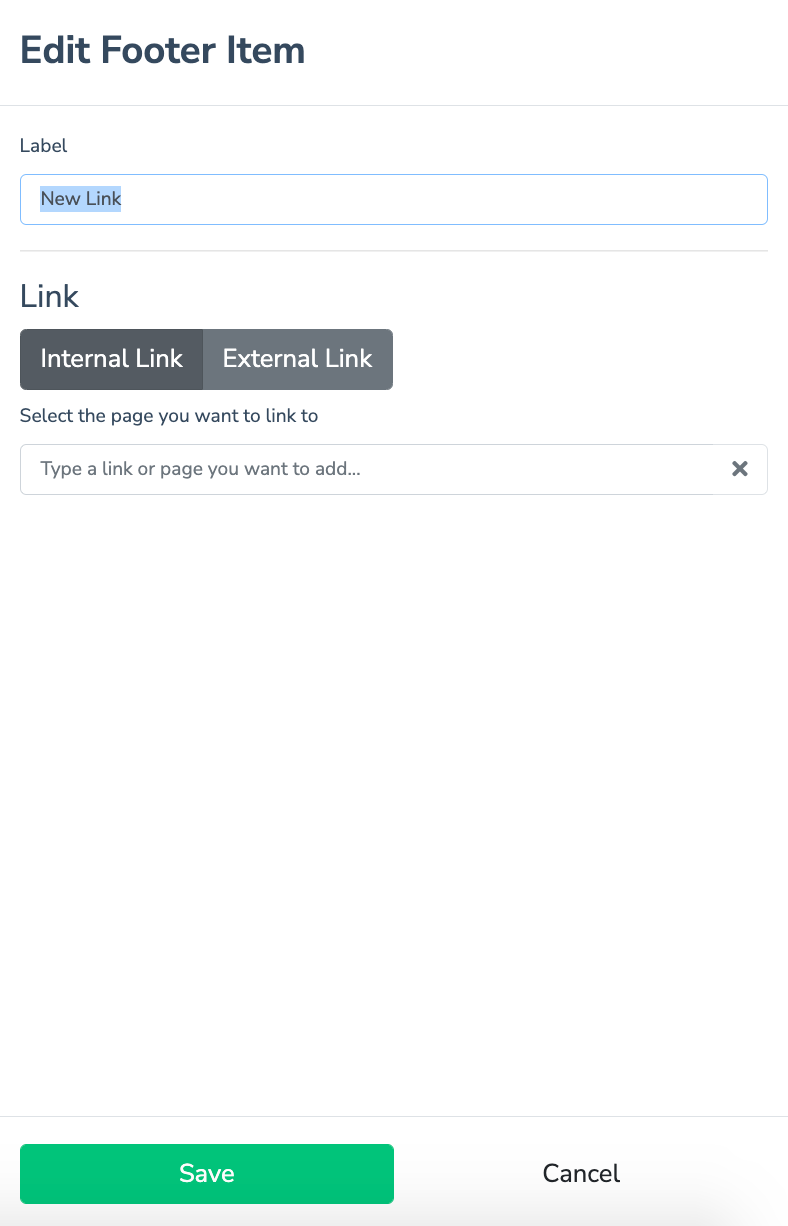
An “Edit Footer Item” tab will appear. Under the field “Label” type in your link.
Click on the “Internal Link” button if when clicking on the link, you are taken to a page within your website.
Otherwise, click on the “External Link” button if when clicking on the link, you are taken to a page that is not within your website.
Select the “page you want to link to” from the dropdown menu (you may only go two containers/links deep within a single dropdown) or type in the “External Link”.
Click “Save” on the bottom of the tab to add your link. It will appear under the heading “Footer Links”.
Was this article helpful?
That’s Great!
Thank you for your feedback
Sorry! We couldn't be helpful
Thank you for your feedback
Feedback sent
We appreciate your effort and will try to fix the article